


New article
Recently updated
Auditing and restoring manually changed records in ANOMS

Who is this article for?Noise analysts who use the ANOMS desktop client and need to audit or restore manually changed records.
Access to the ANOMS Noise Analyst Workbench is required.
Database changes made in both the ANOMS desktop client and ANOMSX are stored in a shared audit table, allowing you to query historical values and restore records to their original state.
Understanding how the audit system works
Database changes are stored in a shared table accessed by both the ANOMS desktop client and ANOMSX. You can query this table directly, then use the Operations Editor (for operations) or the Noise Classification tool (for noise) to alter fields. Changes made on the desktop side are still logged and remain visible in the ANOMSX Changelog, and vice versa.
For general usage of the tools referenced below, see the published articles on the Query Generator and the Operations Editor.
Finding a record's original value
To retrieve the original value of a modified record:
- Obtain the Key of the record you want to audit (for example, from the ANOMSX Changelog).
- In the Query Generator, build a query against the Manual Changes Audit Log relation using the Key as the search criteria.
- Assemble the output criteria — useful fields include Creation Date, Columns Modified, Previous Values and Current Values.
- Run the query with output to Excel.
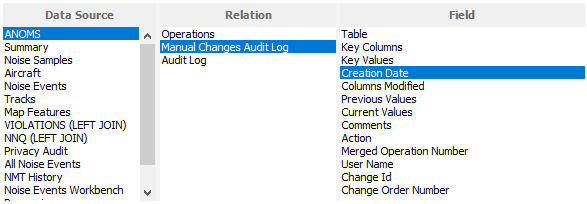
Selecting the Manual Changes Audit Log relation and its output fields in the Query Generator
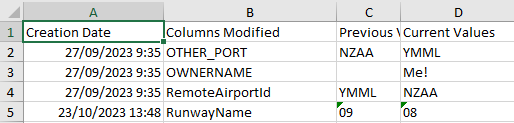
The query results in Excel — each row shows the modified column with its previous and current values
Note: No time or date-based criteria are required — querying on a key value retrieves all audit data for that key.
Because the results are sorted by Creation Date ascending, any edits to the same field appear consecutively, and the first entry holds the original value.
Correcting the record
To restore a record to its original value:
- Find the operation to be edited (for example, by exporting from the Query Generator into the Operations Browser).
- Select Edit Operations to open the operation for editing.
- Edit the field back to the original value.
- Save the edit.
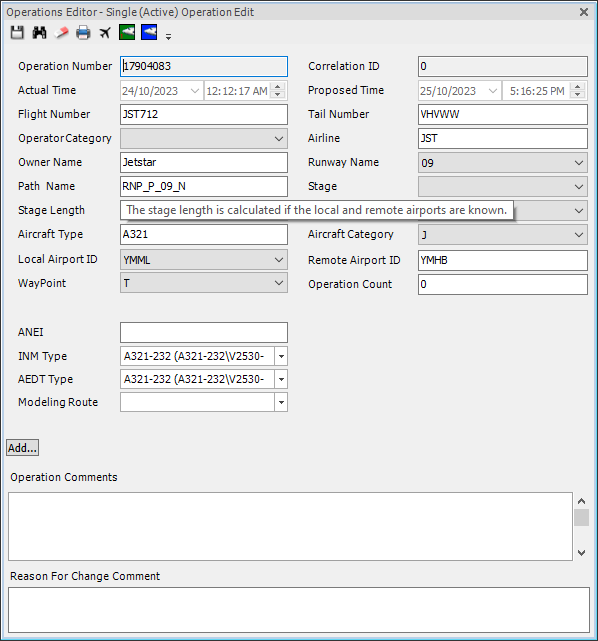
The Operations Editor open on a single operation, where the field can be set back to its original value and saved
The correction is itself recorded in the Manual Changes Audit Log and appears in the ANOMSX Changelog.