


New article
Recently updated
Tracking manual changes with the Changelog in ANOMSX

Who is this article for?Noise analysts who need to see who changed operations or noise events and when.
Access to ANOMSX is required.
The Changelog in ANOMSX gives you an easy-to-follow view of manual edits users have made to Operations and Noise Events records, allowing you to track, review, and understand modifications.
Understanding how the Changelog works
In the shared ANOMS database, every manual change is recorded in the Manual Changes Audit Log, which the Changelog presents in the ANOMSX interface. You can investigate, track, and edit changes via either the ANOMS desktop client or ANOMSX, and changes made in either interface are reflected in the other.
Opening the Changelog
To access the Changelog:
- In the ANOMSX sidebar menu, select Settings.
- Navigate to the Changelog section.
- Click the title.
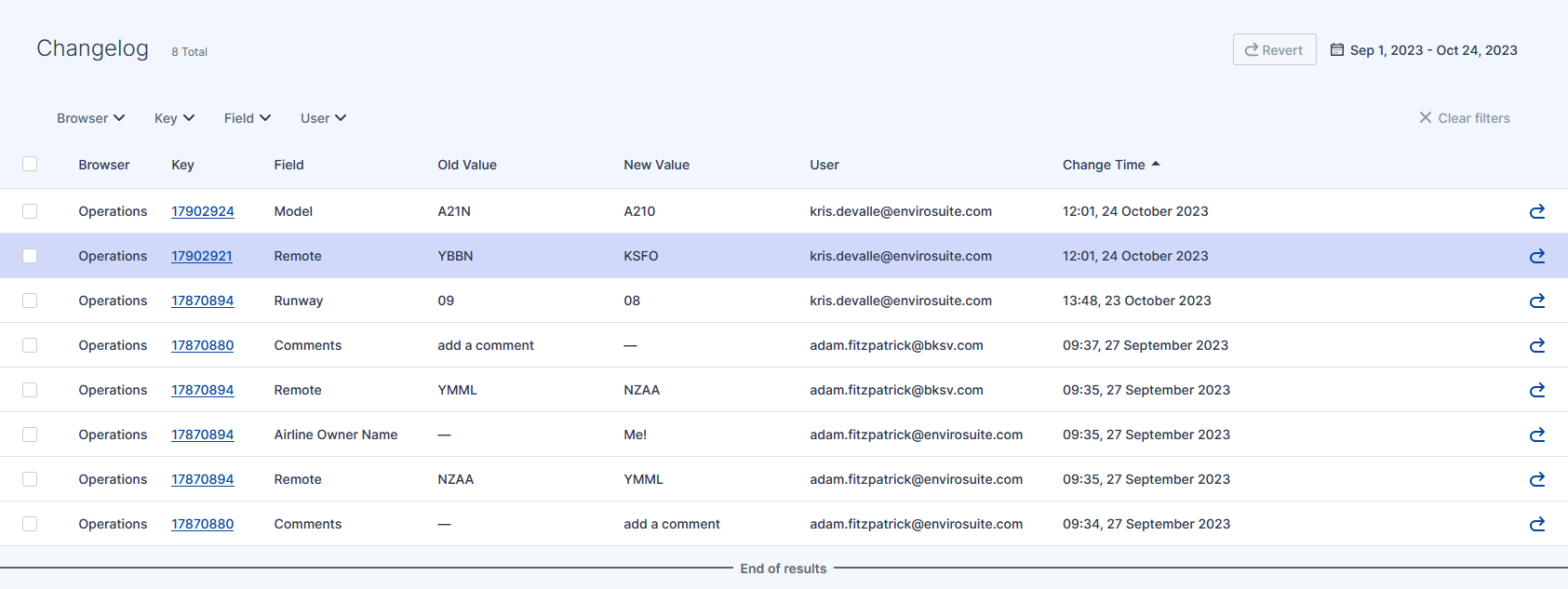
The Changelog interface displays recent manual changes to Operations records, with the record count next to the title, filters along the top, and a Revert action on each row.
Choosing the date range
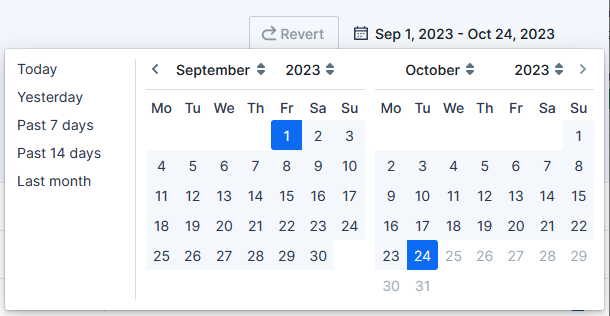
The Changelog view defaults to the current day, and a count of records changed (if any) appears next to the Changelog title in the top left. The Date Picker in the top right controls what is displayed.
To select a date range:
- Click the date range to open the Date Picker.
- Select a quick range on the left-hand side (Today, Yesterday, Past 7 days, Past 14 days, Last month), or pick dates manually using the calendars.
- Select the Start Date first, then the End Date.
- Use the pickers at the top of each calendar to change month or year.
Note: A wider date range may cause a delay while more data is loaded.
Filtering the results
The filtering section narrows large datasets down to the records you need, on top of the date selection already applied:
- Browser — show changes made in one or both of the main browsers (Operations and Noise Events)
- Key — narrow the selection to a single key, the identifier for a record (all changes made to that record within the date criteria are shown, which is useful for tracking the overall history of a single record)
- Field — show changes made to one or more specific fields (the menu options expand as different fields are edited by users)
- User — filter by the user ID of the person in your organisation who made the change (this menu also populates as more users make edits)
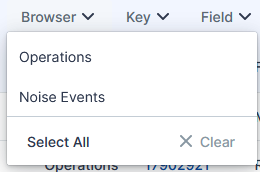
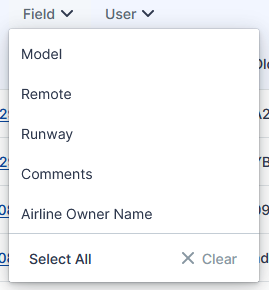
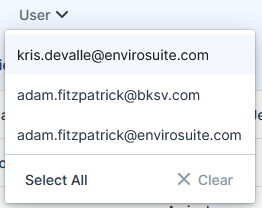
You can apply multiple filters together to reduce the dataset to exactly the records required. To remove them all, use Clear Filters on the far right of the screen.
Reading the columns
Column | Meaning |
Browser | The browser where the change was made — currently Operations or Noise Events. |
Key | The unique key that identifies the individual record. |
Field | The data field that was edited. |
Old Value | The previous value of that field. |
New Value | The value it was changed to. |
User | The identity of the user who made the change. |
Change Time | The time and date of the change. |
Results are usually sorted from earliest to latest (ascending) by Change Time. Click the Change Time column header to reverse the sort to descending.