


New article
Recently updated
Reverting manual edits in the Changelog

Who is this article for?Noise analysts who need to undo manual edits to operations or noise events.
Access to ANOMSX is required. Drilling into record details may be disabled on some systems.
The Changelog allows you to revert manual edits to operations and noise events, either individually or in bulk, and restore records to their original values.
Reverting a single record
To revert a single record:
- Identify the record that requires reversion, using the date picker and filters as needed.
- Click the Revert button at the right-hand end of the row.
The record reverts to its previous value. The reversion is itself logged, so you can change it back again if needed.
Reverting records in bulk
To revert multiple records at once:
- Identify the records that require reversion. Use the filtering tools so that only the correct records are displayed.
- Click the checkbox at the top of the checkbox column to select all displayed records, or tick the checkboxes next to only the records that require reversion.
- The bulk revert button next to the Date Picker turns blue, indicating it is available.
- Click the bulk revert button to revert every record with a ticked checkbox.
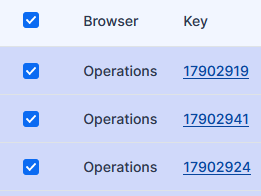
Selecting records for a bulk revert using the checkbox column
Note: Bulk reverts should be done carefully, as they can change a lot of records at once — although the Changelog also lets you easily change them back.
Reverting to the original value
A record may have had a field edited multiple times over a period. The original value is retained, and can be found by investigating the record back to its inception — the time the record originally entered the database. There are two ways to locate the original entry.
Locating the original entry using the Key field
To locate the original entry by drilling into the Key (where enabled):
- Click the Key value itself in the Key column.
This drills into the record on the Operations page or the Noise Events page, where you can see the record's details and its inception time.
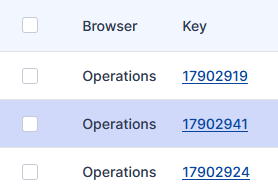
Selectable Key links in the Key column — clicking a key drills into the underlying record where this is enabled
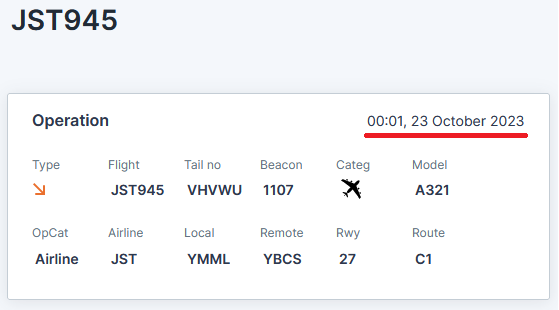
Drilling into a Key opens the record — here an Operation — showing its inception date and time
Note: Some systems prohibit drilling into the Key field. If the keys in your Changelog are not clickable, use the filtering method instead.
Locating the original entry using filters
To locate the original entry by filtering over a wide date range:
- Find the Key of the record you wish to revert to its original value.
- Apply the Key filter for that key.
- Widen the date range parameters to go back a suitable period — for example, a year before the record — so the earliest entries are included.
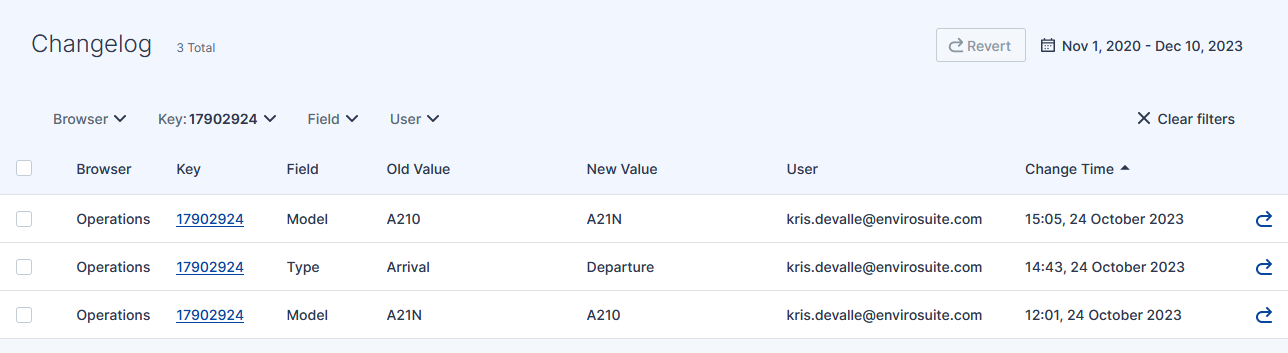
The Changelog filtered to a single Key with a widened date range, revealing the full edit history of the record
You can now see all edits ever made to that record, including the original entries.
Reverting the record to its original value
To revert the record to its original value:
- Using the inception date obtained via either method, set the Date Picker to include the original inception date.
- Filter the displayed records using the Key of the required record.
- Review the results and find the first edit — its Old Value is the original value.
- Click Revert on that row to return the record to its original value.
Auditing manual changes from the ANOMS desktop client
Manual edits made in ANOMSX and in the ANOMS desktop client are stored in a single shared table, the Manual Changes Audit Log, so you can audit and correct changes entirely from the desktop client as well. You can query the audit log with the Query Generator and correct values with the Operations Editor.