


New article
Recently updated
Managing noise event detection templates in Focus

Who is this article for?ANOMS administrators who need to adjust how noise monitors detect events.
Focus access with management rights is required — granted per site; contact Ideagen support if you do not have access.
Noise event detection templates define the conditions under which a noise monitor detects and records a noise event.
Locating templates
Templates are managed on the Templates tab of the Edit NMT & Location page for each monitor.
To access the Templates tab:
- Go to NMT Manager.
- Select Manage for the relevant monitor.
- Click the Templates tab.
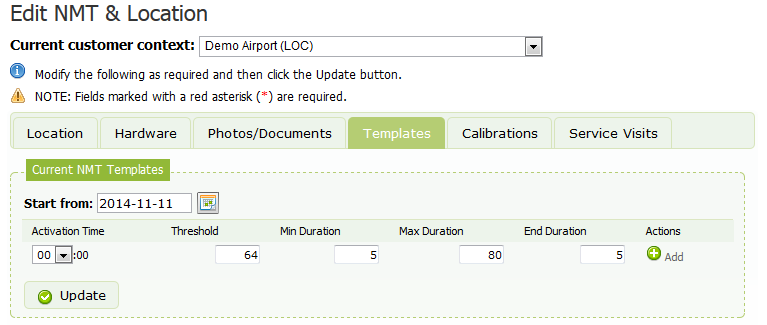
Note: These steps are performed in Focus, the noise monitor management web tool.
Understanding template parameters
Each template uses four parameters to control event detection:
Parameter | Purpose | Typical value |
Threshold | The level, in decibels, above which the monitor begins recording an event. When local noise rises above the threshold, event recording starts. | Site-specific |
Min Duration | The rise above the threshold must persist for longer than this to be considered an aircraft noise event. Filters out sudden, short noises that do not fit the profile of an aircraft noise event. | 5 seconds |
Max Duration | The maximum time for an event — recording stops after this time. Helps filter environmental noise that is not an aircraft event, which typically rises and falls relatively quickly. | 80 seconds |
End Duration | The tail of the event — records noise levels after the event finishes, either when Max Duration is reached or when levels recede below the threshold. Lets you see whether the noise stays at average levels. | 5 seconds |
Using multiple templates
At minimum, a single template must be set. However, multiple templates can be used for different times of the day.
A night template is particularly useful for monitoring aircraft disturbance more accurately at night, when the environment is quieter. This is achieved by lowering the Threshold setting for the night hours.
Adding a template
To add a new template:
- On the Templates tab, click Add.
- Choose the Activation Time to set when the template becomes enabled during the day.
- Set the start date for the new or modified template.
- Click Update.
Note: If you retroactively enable a template, all data for that monitor is reprocessed. This alters your historical results, and reprocessing may take some time if a significant date range was chosen.