


New article
Recently updated
Understanding the Violation Rules Manager

Who is this article for?Noise analysts who want violations detected automatically during nightly data processing.
Access to the ANOMS Noise Analyst Workbench is required.
The Violation Rules Manager (VRM) lets you define rules that automatically detect violations, such as continuous descent non-compliance, minimum height breaches and noise excesses.
Understanding how automatic violation detection works
Operations that fulfil the criteria of a rule are automatically recorded as violations, making the reporting, tracking and identification of violations much easier.
To implement automatic violation detection:
- Define a violation rule in the Violation Rules Manager.
- ANOMS runs the rule as part of nightly data processing for all future flights.
- Each operation that breaches the rule generates a violation record.
- Review the detected violations in the Violations Browser, typically as a daily or weekly task, investigating their validity or severity and carrying out your airport's policy on treating violations.
You can also display tracks on the map coloured by the violation rule they breached, which is useful for ranking and visualising your airport's top violations.
Note: General rules are no longer supported. Any older General rules should be redefined using the specific rule types below, and older violation rules should be checked for operability.
Reviewing the available rule types
A number of specific rule types are available, designed to cover every potential type of airspace violation:
Rule type | Detects |
CCO Rule | Level segments of flight during departures, to monitor continuous climb procedures. |
CDO Rule | Level segments of flight during arrivals, to monitor continuous descent procedures. |
Min Height Rule | Departures that have not reached a minimum height at a certain distance from the airport. |
Track Rule | Operations that leave a predefined corridor in an undesirable direction. |
Noise Level | Aircraft that create a noise event with an extreme dB level. |
Gate Rule | Operations that penetrate (or fail to penetrate) one or more gates, optionally with altitude and speed requirements. |
Curfew Rule | Aircraft that operate outside a pre-set time period, identified by a specially constructed query. |
Exclusion Zone | Operations that penetrate a pre-made selection zone. |
For some rule types, all the criteria are set directly in the VRM panel. For others, you must construct virtual airspace elements first, such as gates, corridors or zones, and the Curfew rule needs a query built to strict requirements.
Understanding common rule fields
Every rule shares a set of common fields. Selecting a field in the VRM shows a brief description of its function and usage.
Field | Description |
Name | The name of the rule. Use a concise, descriptive name. |
Type | The rule type, chosen when the rule is created. |
Description | A longer description containing all the specifics of the rule. |
Severity | Chosen from a drop-down. The available severities can be customised for your site setup. |
Enabled | Determines whether the rule is used during overnight processing. This lets you temporarily disable a rule without deleting it. If the box is checked, ANOMS runs the rule overnight from then on. |
Extent | A description of the extent of this rule. This is a flexible field where multiple options can be configured or chosen. |
Query Gen Filters | A collection of queries used to pre-filter the operations affected by the rule. Operations funnelled through a pre-filtering query have a Violations Candidate Y/N value applied to them, which can then be used for compliance statistics. |
Query | For query-driven rule types, the single query that selects the violations. |
Creating a new violation rule
To create a new violation rule:
- Go to Data on the Main Menu.
- Select Violation Rules Manager.
- Click the Add New Rule button.
- Select the rule type from the list.
- Set the parameters for the selected rule type using the drop-downs or enter values into the required fields.
- Click the Save icon when all fields and conditions have been met.
Note: For some rule types, the required airspace elements (gates, corridors or zones) must be created before the rule can use them.
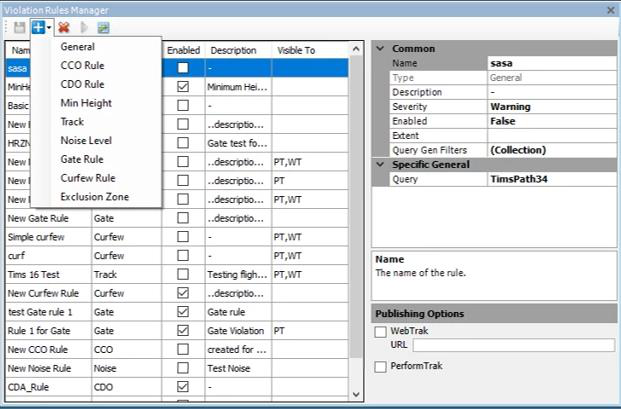
The Violation Rules Manager, with the Add New Rule list showing the available rule types
Editing an existing violation rule
You can edit a rule that is not identifying the intended operations, and you can enable or disable a rule if you need to turn it off for any reason.
To edit an existing violation rule:
- Open the Violation Rules Manager.
- Select the rule you want to edit.
- Change the fields and drop-down values as required.
- Click the Save icon to save the changes.
Note: Changes take effect from the next nightly processing period. To fix violations already recorded in the historical data, re-run historical processing.
The Violation Rules Manager also lets you delete a rule you no longer need. If you only want to stop a rule running temporarily, clear its Enabled checkbox instead.