


New article
Recently updated
Creating and running an update rule

Who is this article for?ANOMS administrators who need to create and run bulk update rules.
Administrator access to the ANOMS Noise Analyst Workbench is required. Reverting an update requires contacting Ideagen support.
Once you have built an eligible query that identifies the records to correct, you create an update rule that applies the change and either runs it continuously or executes it manually over a chosen date range.
Opening the Update Rules Manager
Note: The Update Rules Manager is a specialist, administrator-level feature.
To access the Update Rules Manager:
- From the Main Menu, click Data.
- Choose Update Rule Manager.
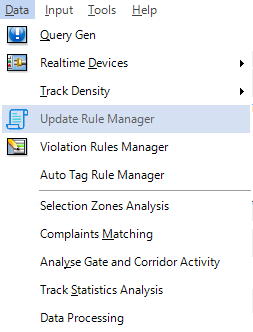
The Update Rule Manager on the Data menu
Creating an update rule
The example values below re-assign the runway designation of operations identified by a gate-based query.
To create an update rule:
- Click Add Rule (the plus icon).
- Give the rule a Name (for example, the name of the runway being corrected).
- Optionally, add the rule to a Group (groups can be used to run rules in a batch; this is not compulsory).
- Choose an Order (this setting controls which rule is run first, next, and so on; in some setups, one correction must happen before the next can).
- To have the rule run constantly as new data arrives, select Active (an inactive rule must be run manually).
- Choose the Update Table (the database table the rule will update; this corresponds to the Table and Relation setup displayed in the Query Generator, for example the OPER table for operations; you are restricted to a subset of eligible tables).
- In the Set Columns field, enter the column and its new value (use the drop-down below to view the list of columns, which is similar to what is displayed in the Query Generator; ensure the new value is between single quote marks, for example,
RUNWAYNAME='01R'). - In the Where field, select the field that the query outputs (
OPNUMfor operations, orEVENTNUMfor Noise Events). - In the Is In drop-down, select the query you created earlier.
- Click the Save icon.
Read logically, the example rule says: update the Operations table, setting the runway name to 01R, for all operation numbers returned by the selected query.
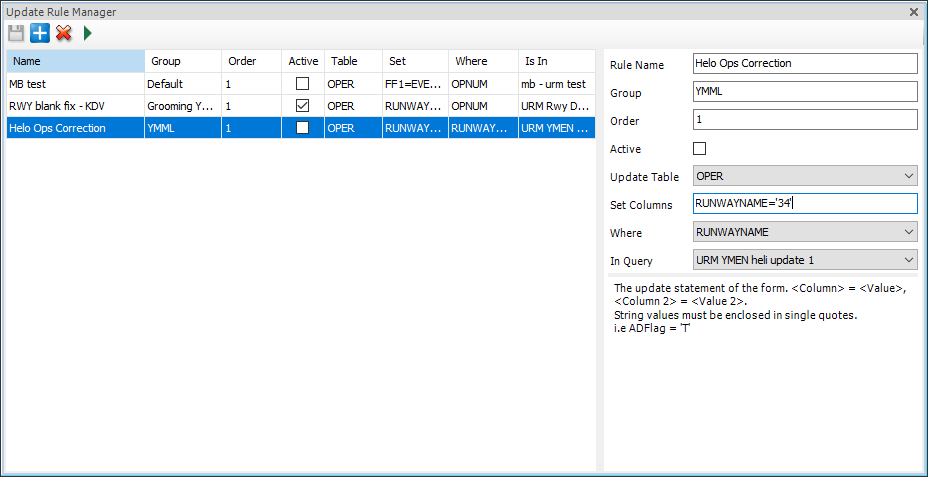
A completed update rule setting RUNWAYNAME for all operations returned by the selected query
Running a rule manually
If you only want to run a rule once to correct or amend a dataset, do not make the rule Active.
To run a rule manually:
- Create the rule as described above.
- Ensure the rule is saved.
- Select the rule.
- Click the Run button (the green arrow).
- In the date picker, choose the historical period to update.
- Confirm your selection.
Important: Begin with a small time period so you can review the results of the update before running it more widely. From user experience it can be easy to alter an unintended column and require correction. The Update Rules Manager is a powerful tool that can make vast database changes, so it is recommended that you work with a colleague to verify the process.