


New article
Recently updated
Understanding the Update Rules Manager

Who is this article for?ANOMS administrators who need to correct or groom database records in bulk.
Administrator access to the ANOMS Noise Analyst Workbench is required.
The Update Rules Manager (URM) drives the Generic Data Updater, allowing bulk correction of datasets in the ANOMS database as well as ongoing data correction and grooming.
Understanding what the Update Rules Manager does
The URM lets you make mass changes to data in the database, either as a one-time historical correction or as an ongoing rule that continually corrects incoming data as part of data processing.
The URM works with the Query Generator, similar to the Violation Rules Manager: you set up a filtering (qualifying) query that identifies the records requiring modification, and the URM uses that query to make the changes. If you can construct a query that identifies the operations that need updating, the URM can update them.
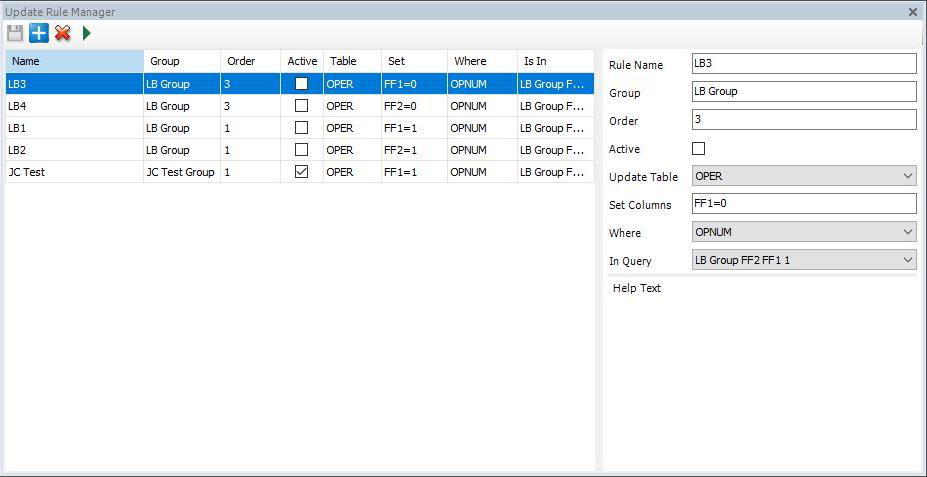
The Update Rule Manager in the ANOMS Client, with rules listed on the left and the rule definition fields on the right
Understanding Active rules and Manual rules
There are two major categories of update rule:
- Active rules run as part of data processing and act on any incoming, qualifying data that fits the criteria. Data is corrected continuously — for example, runway assignment checking or plausibility rules for Noise Events.
- Manual (one-time) rules are not active and are run manually through the interface over a date range you choose. These are typically used to correct data that was previously entered incorrectly, automatically or manually, and has since been rectified.
Correcting runway misassignment: a worked example
A common use case is correcting runway misassignment on parallel runways. Occasionally a departure is assigned to the wrong runway of a parallel pair — for example, a flight that clearly originated on the neighbouring runway.
To correct misassigned operations:
- Identify the misassigned operations on the map, for example by querying departures for the suspect runway on a given day and inspecting the tracks near the runway.
- Build a gate that captures the misassigned operations. Ensure the gate is not so big that it also captures flights genuinely originating from the correct runway.
- Reprocess the relevant dates using Gate Analysis so the gate penetrations are recorded.
- Create a query that returns the operation numbers of flights passing through the gate (see "Creating a query for use with the Update Rules Manager").
- Create an update rule that sets the runway name for every operation the query returns (see "Creating and running an update rule").
Understanding safety considerations
Automating broad or specific changes to the database carries considerable power, and you must be confident that a rule will not alter the wrong dataset. From user experience, it can be easy to alter an unintended column and require correction. Work with a colleague to check the process, and start manual runs with a small time period so you can review the results.
Note: Revert scripts can be applied in case of user error, but you must contact Ideagen support as soon as possible.
Note: The Update Rules Manager is a specialist, administrator-level feature — access is controlled via user levels and it is only available to the administrator user role.