


New article
Recently updated
Understanding Data Tags and adding tags manually

Who is this article for?Noise analysts who want to group and track records with Data Tags.
Access to the ANOMS Noise Analyst Workbench is required.
Data Tags are a way of grouping, identifying or collating different records under one or more keywords.
Understanding what Data Tags are
Tags can be placed manually on both Operations and Noise records, and can also be assigned automatically based on pre-set rules. Tags are visible in the Operations and Noise Browsers, queries built with the Query Generator can use them as search criteria, and custom reports via the Crystal Reports generator can also use them.
There are two types of Data Tags:
- Standard Data Tags simply associate a keyword with the record
- Data Review Tags carry a checkbox to indicate that some activity must be carried out for the record. These are for workflow-based activities: an empty checkbox indicates work is outstanding, and users click the checkbox to indicate the work has been done. Queries can be built to find outstanding Data Review Tags and ignore completed ones
Both types can be assigned manually or automatically by the system. Manual tags can be removed by users; system-assigned tags can be configured so that users cannot remove them.
A typical use case is tagging a small set of special-purpose flights — for example, calibration flights used to set up and test airspace infringement detection — so that queries and infringement pre-filtering can deliberately include or exclude them. The same approach works for identifying go-around flights or any other category you need to filter in or out of analysis.
Using the Tags column in the browsers
The Operations and Noise Browsers both have a column labelled Tags. This column behaves like any other column: it can be lifted and re-ordered anywhere along the browser and sorted ascending or descending by initial tag name. Multiple tags on one record are separated by a semi-colon.
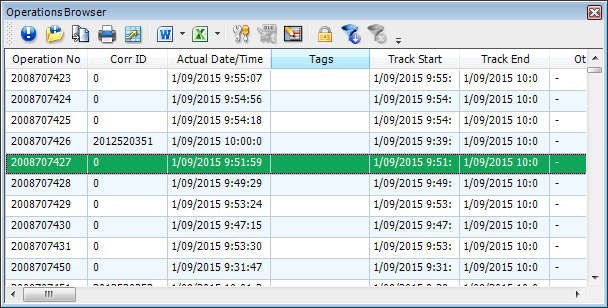
The Tags column in the Operations Browser
Adding tags to Operations
Manual tags for Operations are added via the Operations Editor. Tags can be added to a single operation or to multiple operations at once. The tagging feature sits below the list of fields, just above the Operation Comments section. If the operation already has tags, they are displayed there.
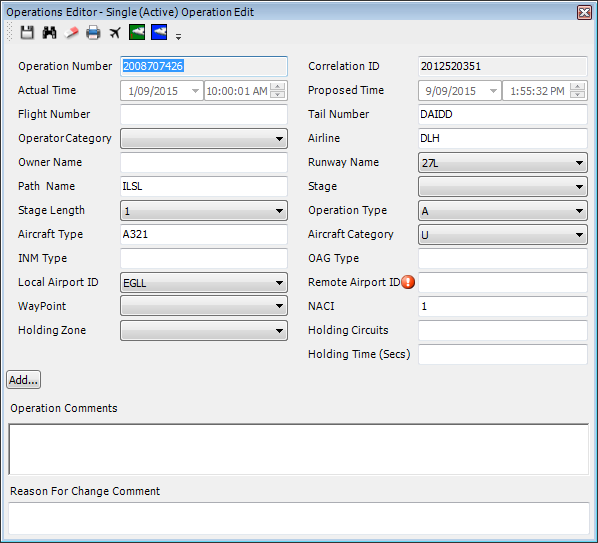
The Operations Editor — the Add button for tags sits above the Operation Comments section
To add tags to Operations:
- In the Operations Browser, highlight the operation or operations you want to tag.
- Right-click and select Edit Operations.
- Click the Add button above the Operation Comments section.
- Begin entering the text of the Data Tag. The dialogue lists matching existing tags so you can add one quickly without entering the full text.
- To add an existing tag, click to select it (ensure it is highlighted in blue) and press the Tab key, or select it with the mouse.
- To add a new tag, enter the full text and then click the tick icon.
- To delete a tag, click the small x icon on the tag to remove it from the operation or operations.
- Continue adding further tags if needed.
- Save the operation to commit the tags to the database.
Operations can be edited and modified again as many times as needed.
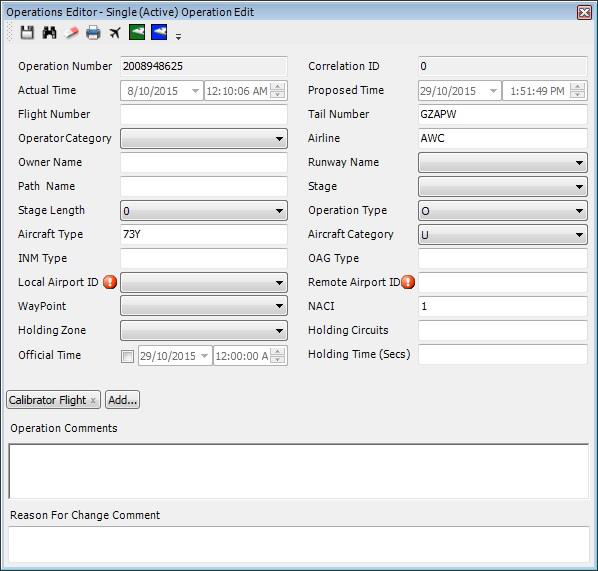
An operation in the Operations Editor with a tag applied, shown to the left of the Add button
Converting a tag to a Data Review Tag
To convert a tag to a Data Review Tag:
- After adding a tag in the editor, right-click the tag and select Review Tag.
- Enter a description of the tag.
Note: Once a tag is saved it cannot be changed.
Adding tags to Noise Events
Tags are added to Noise Events via the Noise Event Details editor. As with Operations, single or multiple Noise Events can be tagged.
To add tags to Noise Events:
- In the Noise Events Browser, select one or more Noise Events.
- Right-click the selected event or events and select Edit Details. The Noise Event Details editor opens.
- Click the Add button.
- Begin entering the text of the Data Tag. The dialogue lists matching existing tags so you can add one quickly without entering the full text.
- To add an existing tag, click to select it (ensure it is highlighted in blue) and press the Tab key.
- To add a new tag, enter the full text and then click the tick icon.
- To delete a tag, click the small x icon on the tag to remove it from the Noise Event or Events.
- Continue adding further tags if needed, then save.
To make a Noise Event tag a Data Review Tag, right-click it after adding and select Review Tag, then enter a description, exactly as for Operations.
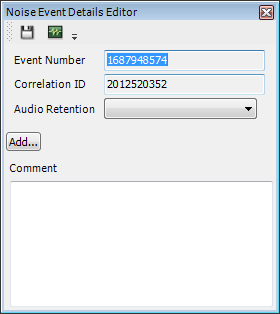
The Noise Event Details editor with the Add button for tags