


New article
Recently updated
Customising Track Density colours and ranges

Who is this article for?Noise analysts who want to adjust how Track Density plots display.
Access to the ANOMS Noise Analyst Workbench is required.
The colours and count ranges used to display a Track Density plot on the map can be changed at any time through the task's properties.
Opening the Display tab
The colours originally assigned to a Track Density are a default set of 20 colours, evenly assigned to ranges from 1 up to the maximum count found in any individual cell. The task's name and description can be modified on the General tab, whilst colours and ranges are modified on the Display tab.
To access the Display tab:
- In the Track Density Manager, select the required Track Density.
- Click Properties.
- Click the Display tab.
The current colour scheme and range values are displayed.
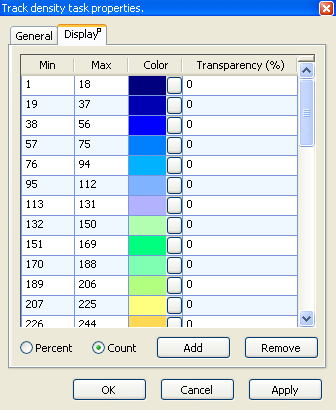
The Display tab showing the count ranges with their colours and transparency values
Changing a range colour
To change a range colour:
- In the Colour column for the required range, click the colour button.
- Select the new colour from the colour palette.
- Click OK, or click Apply to see the change without closing the dialogue.
Changing a range transparency
To change a range transparency:
- For the required range, click in the Transparency (%) column.
- Type the transparency value, from 0 to 100, where 100 is totally transparent.
Changing range values
You can view the ranges by count or by percentage, and change a range by typing new values directly.
To change a range value:
- Click in a range cell and type the new value.
Editing a range value has a cascading effect on the surrounding values: if you change a Min value, the preceding Max value adjusts automatically, and if you change a Max value, the following Min value adjusts accordingly.
Adding a range
To add a range:
- Select a range cell.
- Click Add.
The new range is inserted directly below the selected cell's row.
Removing a range
To remove a range:
- Select a range cell.
- Click Remove.
Resetting the default colour scheme
The default colour scheme is designed so that the colours move from cold (few tracks) to hot (many tracks).
To reset the default colour scheme:
- In the Track Density ranges list, right-click.
- Select Reset to default.