


New article
Recently updated
Configuring location parameters

Who is this article for?ANOMS administrators who need to configure a Location's monitoring, detection and matching settings.
Administrator access to the ANOMS Noise Analyst Workbench is required. Detection values are site-specific — contact Ideagen support for guidance.
Each Location in ANOMS carries its own set of parameters: general details, monitoring percentiles, event detection settings and noise-to-track matching limits.
Setting general location parameters
To configure general location details:
- In the RMT Editor, select the Location.
- Click General Location.
- In the Altitude box, type a value.
- In the Local Airport ID list, select the airport.
- In the Brief Description box, type text.
- In the Description box, type a more detailed description.
- Click OK.
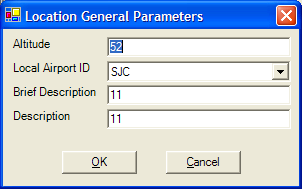
The Location General Parameters window
Parameter | Definition |
Altitude | Altitude of the Location in feet |
Local Airport ID | Three-letter airport ID for the airport near the Location |
Brief | Brief description of the Location |
Description | Address of the Location |
Setting monitoring parameters
To configure monitoring percentiles:
- In the RMT Editor, select the Location.
- Click Monitoring.
- In the Event Threshold list, select the threshold type.
- In the Ln0 box, type a value.
- Repeat for all remaining Ln boxes.
- Click OK.
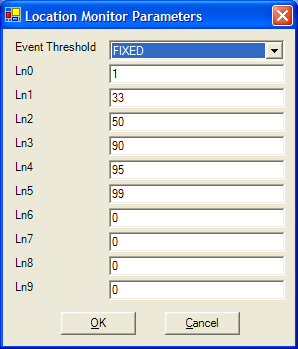
The Location Monitor Parameters window
Parameter | Definition | Default value |
Event Threshold | Event detection algorithm | Fixed |
Ln0 | Percentile value for noise level | 1 |
Ln1 | Percentile value for noise level | 33 |
Ln2 | Percentile value for noise level | 50 |
Ln3 | Percentile value for noise level | 90 |
Ln4 | Percentile value for noise level | 95 |
Ln5 | Percentile value for noise level | 99 |
Ln6 | Percentile value for noise level | 0 |
Ln7 | Percentile value for noise level | 0 |
Ln8 | Percentile value for noise level | 0 |
Ln9 | Percentile value for noise level | 0 |
Setting detection parameters
To configure event detection settings:
- In the RMT Editor, select the Location.
- Click Detect.
- In each parameter box, type the required value.
- Click OK.
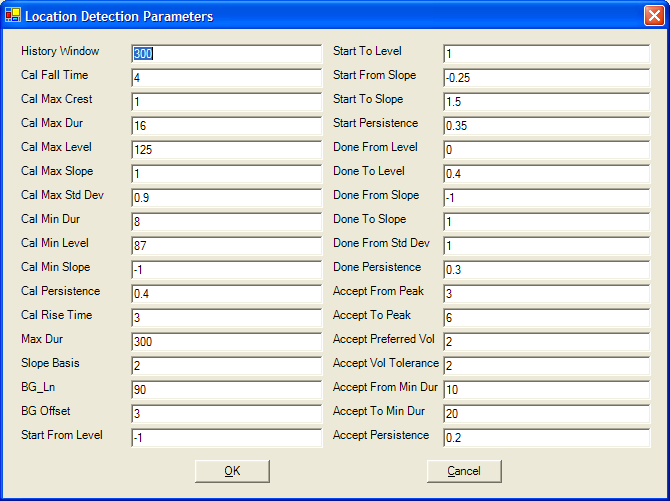
The Location Detection Parameters window
Note: Detection parameter values are site-specific. If you are unsure of the correct values for a Location, contact Ideagen support.
Setting noise-to-track matching parameters
These four parameters control how noise events at the Location are matched to aircraft tracks.
To configure matching limits:
- In the RMT Editor, select the Location.
- Click Match.
- In the Begin Time Window box, type a value.
- In the End Time Window box, type a value.
- In the Max Altitude box, type a value.
- In the Max Range box, type a value.
- Click OK.
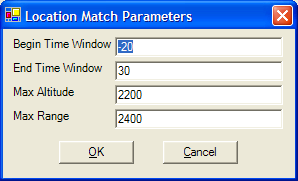
The Location Match Parameters window
Parameter | Definition |
Begin Time Window | Number of seconds before the time of maximum level of the noise event in which a nearby operation is allowed to be matched to a noise event |
End Time Window | Number of seconds after the time of maximum level of the noise event in which a nearby operation is allowed to be matched to a noise event |
Max Altitude | Maximum altitude (in metres) of an aircraft track to allow the track to be matched to noise events at a specific Location |
Max Range | Maximum ground range (in metres) between a Location and an aircraft track to allow the track to be matched to noise events at a specific Location |
Note: For guidance on choosing values for these four parameters, see the article Guidelines for Tuning Noise-to-Track Matching Parameters.