


New article
Recently updated
Understanding how complaint matching works in ANOMS

Who is this article for?Noise analysts who want to understand how complaints are automatically matched to flights and noise events.
Access to the ANOMS Noise Analyst Workbench is required.
ANOMS automatically matches each complaint to the noise event and flight track that most likely caused it.
Understanding the matching concept
A noise event occurs when sound at a noise monitoring terminal exceeds a preset threshold for a defined period. A flight track is the path of an aircraft. ANOMS matches noise events with flight tracks and assigns each match a Correlation ID number; these matched noise events and flight tracks become part of the database.
When a complaint is registered, ANOMS attaches it to the noise event and flight track that most likely triggered it. It searches the database for the flight track and the noise monitoring terminal geographically closest to the caller, and the noise event closest in time to the disturbance that triggered the complaint. The complaint is then assigned the same Correlation ID as the matching noise event and flight track.
Multiple complaints can be linked to the same operation, but multiple operations cannot share the same Correlation ID.
This matching is accomplished by running the complaint match program, which runs automatically overnight.
Note: A complaint can only be matched if the complainant's address has valid latitude and longitude coordinates (see "Validating a complainant's address in ANOMS").
Complaints can also be linked to, unlinked from, or re-linked to operations manually when the automatic match is missing or wrong — see the article on manually linking complaints to operations in the Noise and Correlation guidance.
Running complaints matching manually
The matching process runs automatically overnight; however, it can be run manually if required.
To run complaints matching manually:
- From Complaints Properties, click Complaints Matching on the toolbar.
Modifying the complaints matching parameters
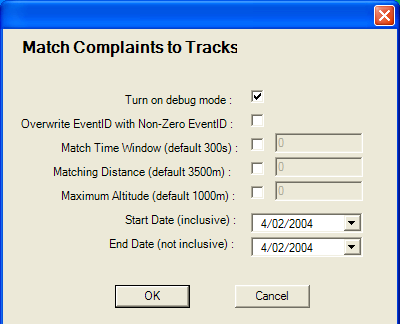
The Match Complaints to Tracks dialogue box, showing the time window, distance and altitude parameters
To modify the complaints matching parameters:
- In the Input menu, click Complaints Matching.
- Complete one or all of the following:
- Select the Overwrite EventID with Non-Zero EventID tick box
- Select the Match Time Window tick box, then type a value (the default is 300 seconds)
- Select the Matching Distance tick box, then enter a value (the default is 3500 metres)
- Select the Maximum Altitude tick box, then enter a value (the default is 1000 metres)
- In Start Date, type or select a date (inclusive).
- In End Date, type or select a date (not inclusive).
- Click OK.
- Click Yes when prompted to continue.
- Click Yes when the informational message appears about new or changed complaints.