


New article
Recently updated
Recording complaint investigation details in ANOMS

Who is this article for?Noise office staff who need to record how a complaint was investigated and resolved.
Access to the ANOMS Noise Analyst Workbench is required.
Once a complaint has been saved, you can record how it was investigated and resolved: who it was assigned to, its status, when it was resolved, and how the response was made.
Before you begin
Note: The investigation results cannot be entered until the enquiry details have been saved.
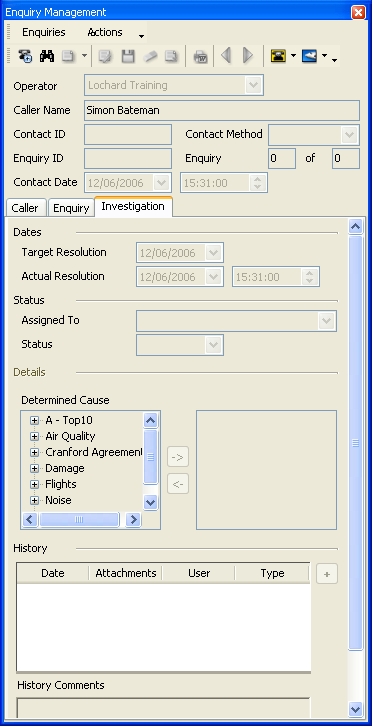
The Investigation tab of the Enquiry Management window
Entering investigation details
To record investigation details:
- If required, locate the enquiry in the Complaints Browser.
- Click Properties.
- From the Enquiry Management window, click Investigation.
- Click Edit.
- In Target Resolution Date/Time, type or select the date and time by which the complaint requires resolution.
- In Actual Resolution Date/Time, type or select the date and time the complaint was resolved.
- In the Assigned To list, select the operator who will work on the complaint.
- In the Status list, select the current status.
- In the Response Method list, select how the response was made to the caller.
- In the Comments box, type any appropriate comments.
- Click Save.
Finding the operations that may have caused the complaint
While investigating, you can quickly load candidate flights.
To load operations from a specific period:
- From the Complaints Properties window, click the Load Operations drop-list arrow.
- Click the required option.
The Operations Browser is populated with operations from that period, helping you narrow down the possible aircraft. You will see a list of relative period options based on the complaint's event time.
Complaints are also matched to operations automatically — see "How complaint matching works in ANOMS".