


New article
Recently updated
Logging a noise complaint or enquiry in ANOMS

Who is this article for?Noise office staff who need to log a noise complaint or enquiry from a member of the public.
Access to the ANOMS Noise Analyst Workbench is required. Enquiry screens are customised per site and may differ.
This article walks you through recording a noise enquiry or complaint in ANOMS, from taking the caller's name to entering the complaint event details.
Understanding the enquiry lifecycle
Every enquiry follows the same overall process:
- Enter the caller's name.
- Check whether the caller is new.
- Retrieve the existing caller record, or enter new enquiry details.
- Validate the address.
- Enter the details of the enquiry or complaint event.
- Investigate the complaint.
- Enter the investigation details.
- Send a response to the caller.
Note: The enquiry and complaint screens are customised per site — your fields and layout may differ from the examples shown.
Opening the Enquiry Management window
To open the Enquiry Management window:
- In the Input menu, click Enquiry Management.
The Enquiry Management window appears.
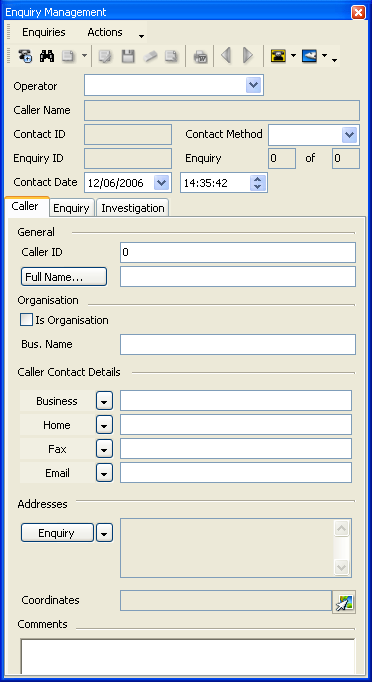
The Enquiry Management window, open at the Caller tab
Note: You can also open the Enquiry Management window by double-clicking an enquiry in the Complaints Browser. When both windows are open, selecting a complaint in the browser automatically updates the details shown in the Enquiry Management window.
Checking whether the caller already exists
Before creating a new caller record, search for the caller to avoid duplicates.
To search for an existing caller:
- In the Search box, type the search value.
- In the Select field to search list, select the field to search on.
- Click Find.
- To move to the next matching result, click Find again.
- To return the caller's details to the Complaints Properties window, double-click the caller, or select the caller and click OK.
Entering the complaint event details
Once the caller record is in place and the address is validated, record the complaint event itself.
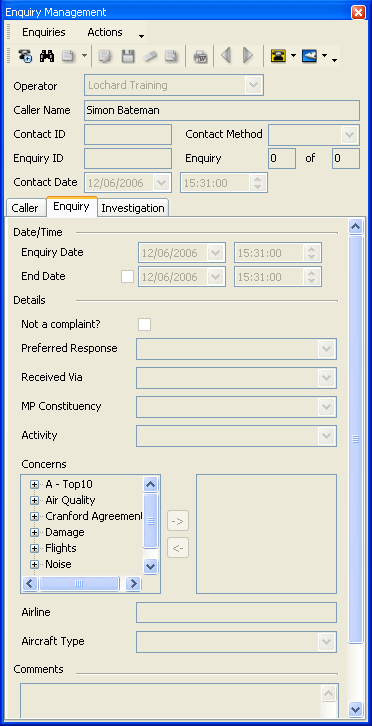
The Enquiry tab, where the details of the complaint event are recorded
To record the complaint event:
- From the Complaints Properties window, click Event.
- Click New Contact.
- In the Entered by list, select the operator, if different from the default.
- In Event Date/Time, type or select the date and time the event occurred.
- In the Enquiry Method list, select how the enquiry was made.
- In the Preferred Response Method list, select how the caller would like to be contacted.
- Type any comments relevant to the complaint.
- Click Save.
The system assigns a new complaint number.
Note: If the caller reports more than one complaint in the same call, see the article on recording multiple complaints in one contact.