


New article
Recently updated
Using the Enquiry Management window and Complaints Properties toolbar

Who is this article for?Noise office staff who want a reference for the Enquiry Management window and its toolbar.
Access to the ANOMS Noise Analyst Workbench is required. Enquiry screens are customised per site and may differ.
The Enquiry Management window is where enquiries and complaints are entered, edited and investigated.
Understanding the window layout
The Enquiry Editor window is divided into four components: the Menu Bar, the Tool Bar, the Message Bar, and the Data Input Area.
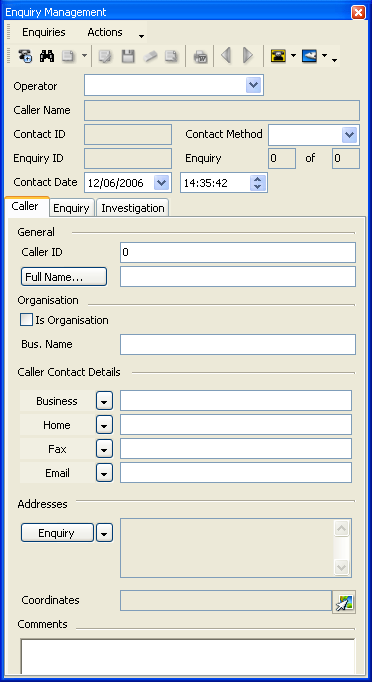
The Enquiry Management window
Note: The enquiry and complaint screens are customised per site — your fields and layout may differ from the examples shown.
The ANOMS Enquiry Management user interface is supported by a sophisticated configuration package that allows the window to be customised to suit your business requirements: the layout, the field labels, the fields themselves and the selection values can all be changed, and new fields can be added.
Using the Complaints Properties toolbar
The Complaints Properties toolbar provides quick access to key functions for managing complaints and enquiries.
Command | Description |
Save | Saves the complaint data as a new complaint. |
Complaints Matching | Runs the complaint matching process. |
Street Locator | Finds valid street names, address ranges and postal codes in the configured street database. |
Caller Replace | Allows you to replace multiple instances of the same caller with one correctly spelled caller entry. |
Clear | Clears data entered into the complaint editor fields. |
Prints the current complaint. | |
Print to Word Template | Prints the current complaint to a predefined Word template. Up to five templates can be configured. |
Load Complaints | Loads the Complaints Browser with the complainant's complaints for the period specified. |
Load Operations | Loads the Operations Browser with operations for a specified period before and after the entered event date and time. |
New Search | Clears the complaint data and sets the sheet to search for a new caller. |
New | Clears the saved complaint data and creates a blank record for new complaint entry. |
Validate Address | Finds the latitude and longitude for a valid address. |
Select Map Location | Retrieves the latitude and longitude from the Map Browser. |
Invalid Address | This symbol indicates that the system could not validate the address. |
Quick-loading related data
Two toolbar tools give you fast access to related records while a complaint is open:
- Load Complaints — click the drop-list arrow next to the button and choose a period to populate the Complaints Browser with the caller's complaints for that period
- Load Operations — click the drop-list arrow next to the button and choose a relative period to populate the Operations Browser with operations around the complaint's event time. This helps to narrow down the possible aircraft