


New article
Recently updated
Managing violation records

Who is this article for?Noise analysts who need to search, edit, delete or print violation records.
Access to the ANOMS Noise Analyst Workbench is required.
Use the Violations Browser to find, review, and maintain existing violation records, including searching within specific time ranges, exporting data, viewing properties, and printing records.
Opening the Violations Browser
To open the Violations Browser:
- On the main toolbar, click Violation.
Alternatively:
- On the Browser menu, point to Violations.
- Click Open Violations.
The Violations Browser appears.
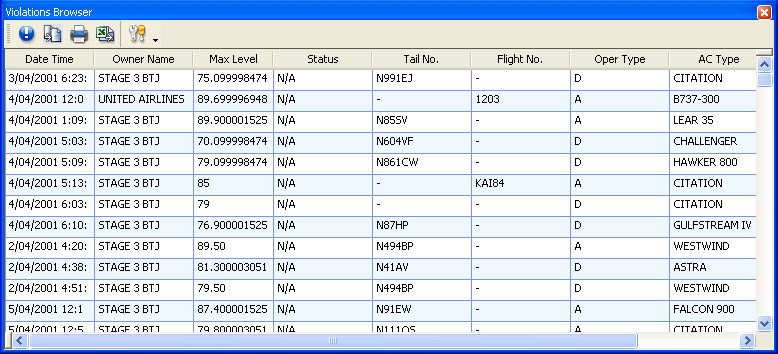
The Violations Browser listing violation records with owner, level, and aircraft details
Searching for existing violations
To search for violations within a specific time range:
- On the Violations toolbar, click New Query.
- In the From date box, type or select a date.
- In the From time box, type or select a time.
- In the To date box, type or select a date.
- In the To time box, type or select a time.
- Click Search.
The Violations Browser populates with matching records.
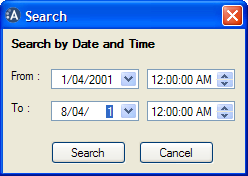
The violations Search dialogue box with From and To date and time fields
Editing an existing violation
To edit a violation record:
- Populate the Violations Browser using the search procedure above.
- Double-click the required violation in the violations list.
Alternatively:
- Select the violation from the list.
- Click Properties.
Then:
- In the Violations Editor window, click Edit Violation.
- Update the violation as required.
- Click Save.
Deleting a violation
To delete a violation record:
- Populate the Violations Browser using the search procedure above.
- Double-click the violation, or select it and click Properties.
- In the Violations Editor window, click Edit Violation.
- Click Delete.
- In the confirmation dialogue box, click Yes.
Printing a violation
To print a violation record:
- Populate the Violations Browser using the search procedure above.
- Double-click the violation, or select it and click Properties.
- In the Violations Editor window, click Print.
- Click OK.
Note: To create a new violation, see the article Recording a violation in ANOMS.