


New article
Recently updated
Recording a violation in ANOMS

Who is this article for?Noise analysts who need to record a violation against a flight operation.
Access to the ANOMS Noise Analyst Workbench is required.
Airports can use the violations functionality to manually track violations according to their own policy, with each violation record storing information about the cause — for example, excessive noise levels, aircraft operating during restricted hours, or deviations from set flight paths.
Understanding the Violations Editor
The Violations Editor creates aircraft and community noise-related violation records. Because violations are linked to an operation, ANOMS automatically populates much of the record for you.
Entering a new violation
To create a violation record:
- On the Input menu, select Violations Editor.
- On the Violations menu, select New Violation.
- In the Operation # box, type the operation number associated with the violation.
- Select Search.
- In the Date Time box, enter the date and time of the violation.
- Complete the remaining fields as required.
- Select Save.
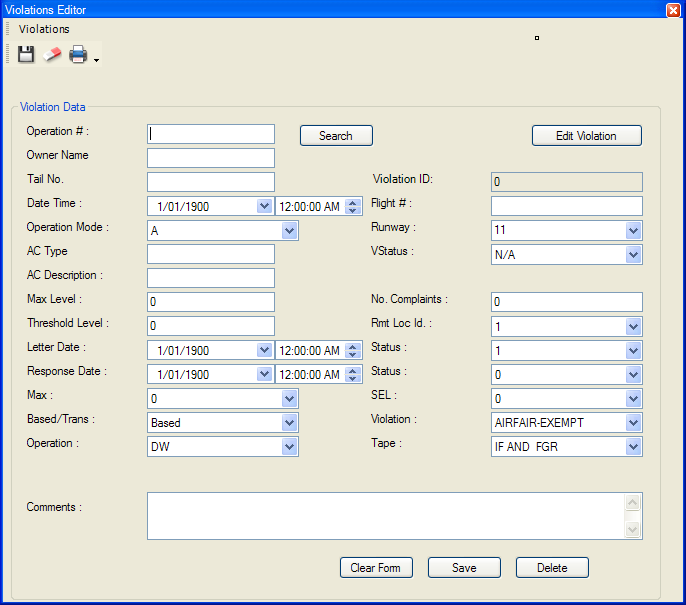
The Violations Editor showing the violation data fields
Understanding automatically populated fields
When you search on the operation number, ANOMS automatically populates certain fields if the data exists.
Operation fields:
- Owner name
- Tail No.
- Flight #
- Operation Mode
- Runway
Noise event fields (if the operation is correlated to noise events):
- Max level — the maximum level across all correlated noise events
- Threshold Level — the lowest threshold level
- RMT Loc Id — the remote monitoring terminal where the maximum level occurred
Complaint fields (if the operation is correlated to complaints):
- No. Complaints — the total complaints for this operation