


New article
Recently updated
Using the Track Time Filter

Who is this article for?Noise analysts who need to isolate flight tracks within a time window.
Access to the ANOMS Noise Analyst Workbench is required.
The Track Time Filter lets you isolate and display only the parts of an operation that fall inside a time window, such as the part of a track that falls either side of a complaint date and time.
Starting the Track Time Filter
To start the Track Time Filter:
- From the Map menu, select Time Track Filters.
- Select a set of operations.
- Enter a specific date (if the data spans more than one day) or time.
- Set the offset by typing a value in the box or clicking the spin box to increase or decrease the minutes.
- Click the slider and drag it left or right to change the reference time.
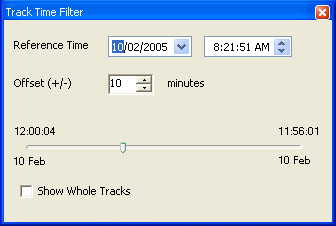
The Track Time Filter window with reference time, offset, and time slider
Note: If tracks are selected, the reference time defaults to the time of the first track point of the selected set of tracks. If no tracks are selected, it defaults to the current date and time.
Note: The minimum and maximum date and time are the first track point and the last track point in the selected set of tracks.
Tip: When investigating complaints, use the Load Operations button.