


New article
Recently updated
Viewing operation properties

Who is this article for?Noise analysts who need to view the full details of a flight operation.
Access to the ANOMS Noise Analyst Workbench is required.
The Operation Properties window consolidates information associated with an operation, from a quick summary through to a detailed tabbed view covering noise events, complaints, corridors, and more.
Understanding the detailed view
The detailed view includes the following information categories:
- General
- Gates
- Complaints
- Events (noise)
- Targets (track points)
- Corridors
- Track profiles
Opening operation properties from the Map Browser
To open operation properties from the Map Browser:
- From the Map Browser, select a track.
- Right-click and select Operations Properties.
- Click View Detailed Properties.
The Operation Properties window displays a summary of the operation. The detailed Operation Properties window then displays.
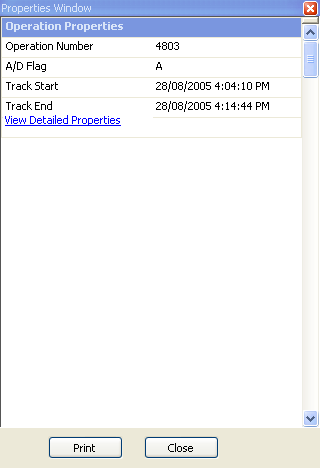
The summary Operation Properties window with the View Detailed Properties link
Opening operation properties from the Operations Browser
To open operation properties from the Operations Browser, do one of the following:
- Select an operation, right-click, and select Properties
- Double-click an operation
Note: If the Operation Properties window is already open, selecting another operation automatically updates the information shown.
Navigating detailed operation properties
The detailed window organises the operation's information into tabs: General, Corridors, Targets, Events, Complaints, Gates, Profile, Images, and System Events. Click each tab as required.
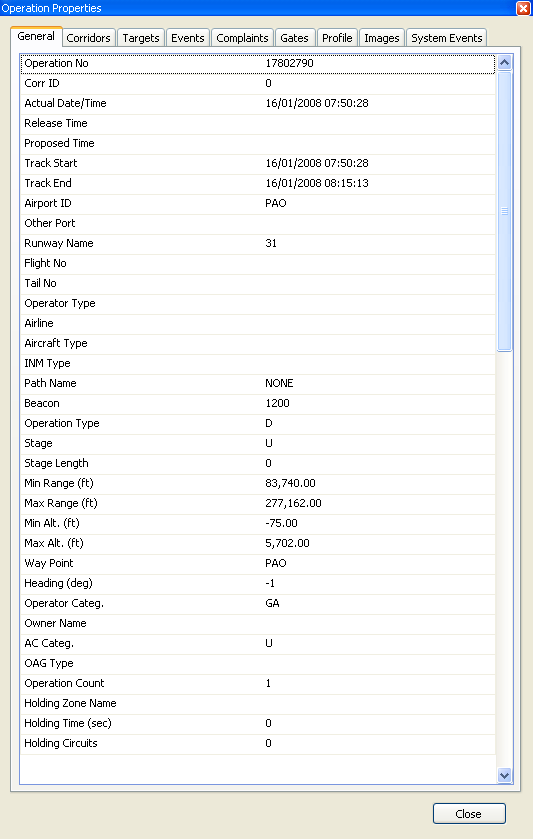
The detailed Operation Properties window with tabs for Corridors, Targets, Events, Complaints, Gates, Profile, Images, and System Events