


New article
Recently updated
Editing an operation with the Operations Editor

Who is this article for?Noise analysts who need to correct or update operation records.
Access to the ANOMS Noise Analyst Workbench is required.
The Operations Editor allows you to correct operations that have erroneous or missing information, such as a missing tail number or an incorrect runway.
Displaying the Operations Editor
To display the Operations Editor:
- Do one of the following:
- On the Input menu, click Operations Editor.
- From the Operations Browser, right-click and select Edit Operations.
The Operations Editor window appears.
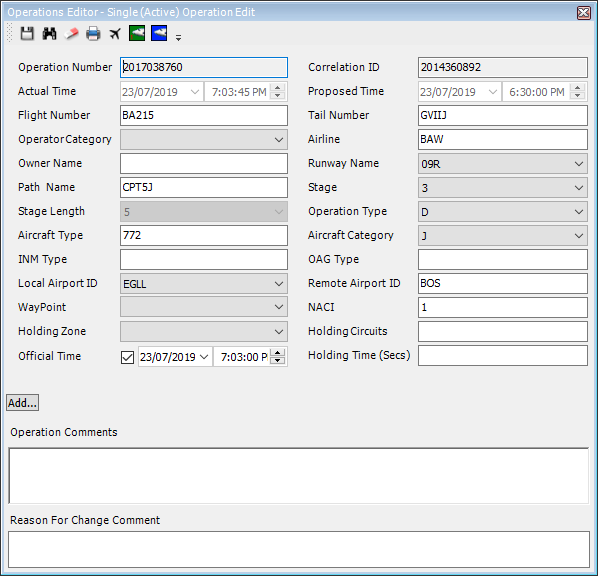
The Operations Editor in single operation edit mode
Searching for an operation by operation number
To search for an operation by operation number:
- Click Search.
- In the Operation Number box, type the required operation number.
- Click OK.
- Update the fields as necessary.
- Click Save.
Note: If the operation exists, the editor is populated; if it does not exist, an error message appears.
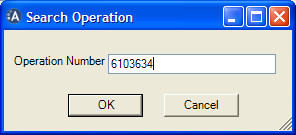
The Search Operation dialog box
Completing registry data automatically
To complete registry data automatically:
- In the Tail Number box, type the tail number.
- Click Aircraft Registry Fill.
- Click Save.
Note: This completes the Owner Name and Aircraft Type fields from the aircraft registry.
Printing the operation details
To print the operation details:
- Click Print.
Editing multiple records
To edit multiple records:
- Select multiple records in the Operations Browser.
- Right-click and select Edit Operations.
Note: The title bar on the Operations Editor shows whether you are editing a single or multiple operations. You can toggle between them with the Edit active or selected button.