


New article
Recently updated
Using the Operations Browser functions

Who is this article for?Noise analysts who need a reference for the Operations Browser toolbar functions.
Access to the ANOMS Noise Analyst Workbench is required.
The Operations Browser displays flight track operations data during a specified time period, with each row representing an individual operation.
Understanding what you can do with the Operations Browser
You can use the Operations Browser to:
- Display operations data for a specific time period
- View a graphical representation of distance vs. altitude for single or multiple operations
- View the properties of an operation
- Quickly access the Operations Editor to enter, edit, and save operation details
- Copy the operation data to the clipboard, or to an MS Excel worksheet
- Display the flight track for the operation in 2D or 3D on the Map Browser
- Manually link or unlink Plans and Operations
- Export operations
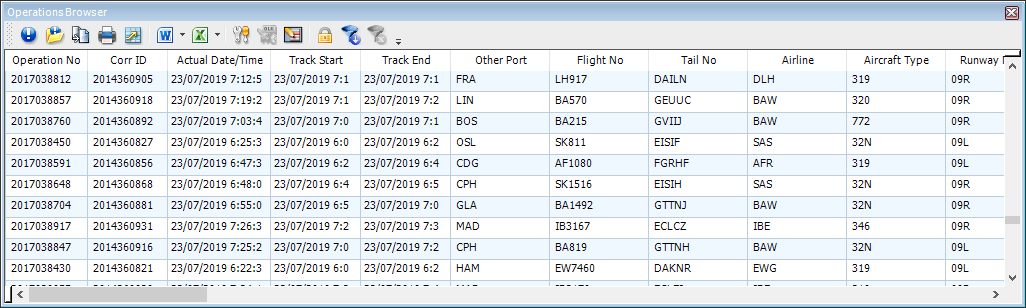
The Operations Browser showing a list of operations with flight, aircraft, and runway details
Using the toolbar functions
The following table describes each toolbar function available in the Operations Browser:
Function | What it does |
Graph | Creates a Track Profile graph for the selected data. |
Properties | Displays the properties window for the selected operation. |
Combine Plans and Operations | Toggles "Combined" mode, which displays all linked plans and operations as one record. |
Export Selected Operations | Exports the selected operations to a comma separated variable (CSV) file or other supported track formats. |
Lock Selection | Locks the selected flights to the Map Browser. |
Filter Selection | Filters the selection to remove unselected flights. |
Cancel Filter Selection | Removes sub-filtering and returns the full set of flights to the browser. |
Note: For details of the export formats, see the article Exporting flight tracks from the Operations Browser.