


New article
Recently updated
Linking complaints and operations in ANOMS

Who is this article for?Noise analysts who need to manage links between complaints and operations.
Access to the ANOMS Noise Analyst Workbench is required.
You can view, create, and remove links between complaints and operations to track correlations in your noise analysis workflow.
Viewing correlated records
To view records that are linked together:
- Populate the browsers using the Populate Open Browsers option.
- Click Browser Linking.
- Select either Operations or Complaints.
The linked browsers now show the records correlated with your selection.
Linking an operation to an open complaint
The Link to Open Complaint function allows you to quickly link an operation to the complaint currently open for investigation.
To link an operation to an open complaint:
- Open the complaint for investigation.
- Load the Operations Browser.
- Select the offending operation.
- Right-click and select Link to Open Complaint.
- Type a comment in the Event Editor dialogue box (optional).
- Click OK.
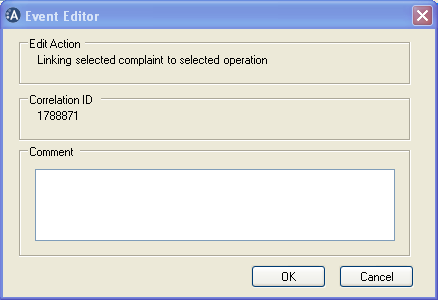
The Event Editor dialogue box when linking a complaint to an operation, showing the assigned Correlation ID and comment box
Manually linking a complaint to an operation
To manually link a complaint to an operation:
- Populate the Complaints and Operations browsers.
- Select the required complaint.
- Select the required operation.
- Right-click and select Edit Correlation.
- Click Link.
- Click Apply.
- Type a comment in the Event Editor dialogue box.
- Click OK.
Unlinking a complaint from an operation
To unlink a complaint from an operation:
- Populate the Complaints Browser.
- Select the required complaint.
- Right-click and select Edit Correlation.
- Click Unlink.
- Click Apply.
- Type a comment in the Event Editor dialogue box.
- Click OK.
Note: The Correlation ID is set to zero when you unlink a complaint.