


New article
Recently updated
Linking a noise event to an operation manually

Who is this article for?Noise analysts who need to correct or create a link between a noise event and an operation.
Access to the ANOMS Noise Analyst Workbench is required.
ANOMS correlates most noise events to operations automatically, but you can create a link manually when the system has missed one.
Before you begin
Noise events are correlated to a single operation; however, an operation can have many noise events.
Note: Ensure that Browser Linking is disabled before you start.
Linking a noise event to an operation
To link a noise event to an operation:
- Load data into the Operations and Noise Events browsers, using the option to populate all open browsers.
- Select the required Noise Event. Its Corr ID will be 0.
- Select the required operation. Check for operations around the time the noise event occurred.
- Right-click and select Edit Correlation. The Correlate Operations, Complaints and Noise Events dialogue box appears.
- Click Link.
- Click Apply. The Event Editor dialogue box appears, and the Correlation ID is generated automatically.
- Under Noise Event Classification, click the appropriate classification — for a single local flight, click 1 - Single local aircraft.
- Type a comment.
- Click OK.
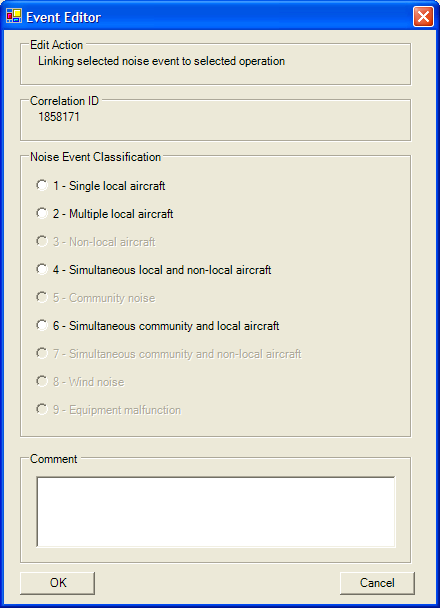
The Event Editor dialogue box during linking, showing the automatically generated Correlation ID and the available Noise Event Classification options
Note: If both complaints and noise events are selected, you cannot perform correlation management.
For the meaning of each classification code, see the article Noise event classification codes reference.
Unlinking or reclassifying a noise event
If a noise event has been correlated to the wrong operation, or given the wrong classification, you can correct it from the Noise Events Browser. Both actions use the same Event Editor dialogue box.
Important: A noise event linked to an aircraft cannot be classified as community noise until it is first unlinked.