


New article
Recently updated
Exporting browser data to a Word or Excel template

Who is this article for?Noise analysts who need to export browser data into a Word or Excel report template.
Access to the ANOMS Noise Analyst Workbench is required.
Every ANOMS data browser can export its data directly into a Word or Excel template, giving you an instant, formatted report built from any browser's columns.
Understanding the export buttons
Every data browser includes Word and Excel export buttons that enable the Export to Template function. The Word and Excel icons open drop-down menus listing all available templates.
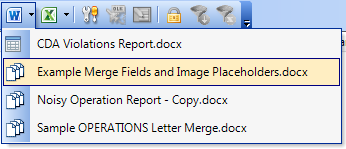
The Word export button's drop-down menu on a data browser, listing the templates available for that browser
Only templates that use the columns of the current browser are displayed in its menu. A template that uses both Operations and Noise fields appears in the drop-downs of both the Operations and Noise browsers; a template that only uses Weather fields is only seen in the Weather browser's drop-down.
Exporting data to a template
To export your browser data:
- Highlight the rows of data you wish to export — a single row, a selected range, or the entire contents of the browser.
- If the data is correlated to rows in another browser, ensure Browser Linking is turned on, so that the correlated data is highlighted too.
- Click either the Word or the Excel export button to view the drop-down menu.
- Select the template you wish to export to.
The selected data is exported to the chosen template, and Word or Excel opens to display the finished result.
Note: Large selections may take some minutes to export.
To build your own templates, see the articles Creating or modifying a Word export template and Creating an Excel export template.