


New article
Recently updated
Creating or modifying a Word export template

Who is this article for?Noise analysts and report authors who need to build or customise a Word export template.
Access to the ANOMS Noise Analyst Workbench and Microsoft Word are required.
A Word export template is an ordinary Word document containing mergefields, table fields and image placeholders that ANOMS fills with browser data at export time.
Understanding template elements
Creating a report template is straightforward if you understand the mail-merge operation. There are three key elements you can add:
- Text fields — simple, single-use mergefields that place one value into the document
- Table fields — like text fields, but placed inside a Word table so that one row is produced per exported record
- Images — placeholders for exportable images such as graphs or the map
For the field names available from each browser, use the sample field documents — see the article Downloading the stock ANOMS export templates.
Adding text fields
Text fields are basic mergefields that appear as text in the export.
To add a text field:
- In Word, on the Insert menu, add a Quick Part.
- Select Field from the drop-down.
- Select MergeField from the left-hand list.
- Type in the field name, using the sample reference documents for the correct name.
The name must conform to the pattern browser_field — for example, operations_adflag for the operation type.
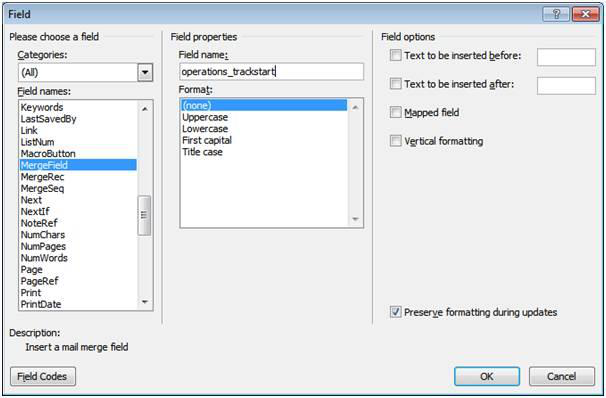
Word's Field dialogue with MergeField selected and a field name in the browser_field format
Adding table fields
Adding table fields is very similar to adding text fields, but you design and format the table yourself.
To add a table field:
- Ensure the cursor is in the table cell that you want to place the mergefield into.
- On the Insert menu, add a Quick Part.
- Select Field from the drop-down.
- Select MergeField from the left-hand list.
- Type in the field name.
Note: Table field names must conform to the pattern tbl_Browser_Field and MUST be inside a Word table. Table fields should be in the first row of the Word table — ANOMS adds one row per exported record beneath them.
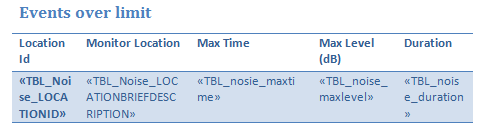
A template table with tbl_ mergefields in the first row beneath the column headings
Adding an image placeholder
Adding images to the export is a very good way to visually demonstrate what is happening. The following image tags can be exported:
Image tag | Contents |
PcaGraph | Point of Closest Approach graph |
NoiseTofGraph | Third-octave graph |
PenetrationGraph | Gate penetration graph |
NoiseSampleGraph | Detailed noise data graph |
NoiseEventGraph | Basic noise event graph |
TrackProfileGraph | Track profile graph |
Map | The Map Browser |
To insert an image placeholder:
- Turn on Word's Developer tab (in Word Options, select Show Developer tab in the Ribbon).
- On the Developer tab, select the Picture Content Control icon.
- Add a picture to the document by clicking where you want to place it.
- Select the picture.
- Click the Properties button near the Picture Content Control button.
- Change the Tag field to one of the allowed image tags.
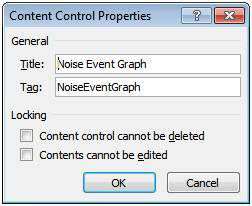
The Content Control Properties dialogue with the Tag set to NoiseEventGraph
Note: An image (graph, map, and so on) must be open in ANOMS at the time of export in order to be exported. The image is exported at the same size as the placeholder — you may need to resize the placeholder before export.
Checking your template appears
A template only appears in a browser's export drop-down if it uses fields from that browser. After saving your template into the templates folder, open the relevant browser and check the Word export drop-down to confirm the template is listed.