


New article
Recently updated
Using the ANOMS Task Bar

Who is this article for?Noise analysts who want one-click access to saved analyses, queries and reports.
Access to the ANOMS Noise Analyst Workbench is required.
The Task Bar turns your routine ANOMS work into one-click tasks, organised into folders and shareable with other user roles.
Understanding public and private tasks
Private tasks can be created by any user and are visible only to their creator. Use them to organise work you do regularly, such as running queries and reports.
Public tasks can be created by administrators, or users with the appropriate permission, and assigned to users in a specific user role. Everyone in that role then sees the task on their Task Bar. For example, a Complaints Analyst may be required to investigate all complaints received during a specific period: an administrator can create the required queries and reports, wrap them in a task, and assign the task to the Complaints Analyst role.
Understanding the three task types
Analysis Tasks consist of a saved query plus a saved layout — both must exist before you create the task. For example, an Analysis Task could pair a noise analysis query with a layout intended for noise investigation. When a user with the appropriate permissions runs the task, the saved layout is loaded, the saved query is executed, and the appropriate browsers and windows are populated.
Query Tasks consist of a query created with the Query Generator that outputs its results to an Excel worksheet — the saved query is the prerequisite. When the task runs, the query is executed and the results are displayed in Excel.
Report Tasks consist of a report that has been published and assigned to a Report Topic — a published report is the prerequisite. Assigning a report to a Report Topic makes it public. For example, an administrator runs the Operation Summary Report, assigns it to the Report Topic "CEO Summary", creates a Report Task called "Run the Daily CEO Report" and assigns it to the Complaints Analyst role. When a Complaints Analyst runs the task, the latest Operation Summary Report is displayed.
Opening the Task Bar
To open the Task Bar:
Do one of the following:
- On the main toolbar, click the Task Bar button
- From the File menu, click Open Task Bar
- Press Ctrl+T
The Task Bar window appears, with your tasks arranged in Private Tasks and Public Tasks folders.
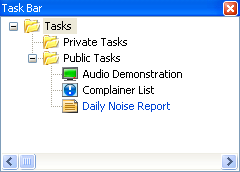
The Task Bar window, with tasks organised into Private Tasks and Public Tasks folders