


New article
Recently updated
Running a report with the Reports Wizard

Who is this article for?Noise analysts who need to run one of the standard ANOMS reports.
Access to the ANOMS Noise Analyst Workbench is required.
The Reports Wizard provides access to the suite of standard ANOMS reports, organised into Complaints, Devices, Noise, Operations and Weather categories.
Understanding reporting options
ANOMS provides several reporting options, including the Query Generator and the Reports Wizard. The Reports Wizard reports are built with Crystal Reports and are opened from the Reports menu; the Query Generator, by contrast, creates basic or formatted reports in Excel. For the list of available standard reports, see the article ANOMS standard reports reference.
Running a report
To run a report:
- On the Reports menu, click Reports Wizard.
- Expand the required report category (for example, click the plus sign next to Operations).
- Select the required report.
- Click Next.
- Review the parameters and update them as required.
- Click Submit Report.
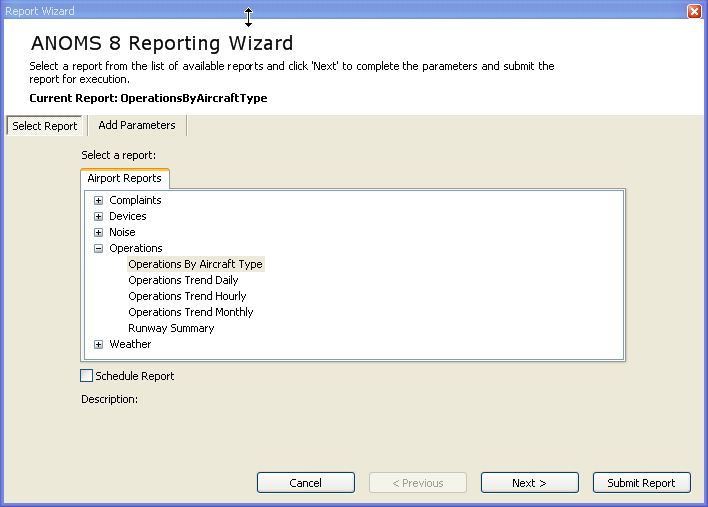
The Reports Wizard with the Operations category expanded and a report selected
Working through an example: Runway Summary report
To generate a Runway Summary report:
- On the Reports menu, click Reports Wizard.
- Click the Airport Reports tab.
- Expand the Operations reports by clicking the plus sign next to Operations.
- Click Runway Summary.
- Click Next.
- If the default values are acceptable, click Submit Report now; otherwise continue.
- In the parameters list, click Airport Id.
- Click the Use Default Value check box.
- Click Enter Value and enter the required airport code.
- In the parameters list, click Start Date and type the required date in the date box.
- In the parameters list, click End Date and type the required date in the date box.
- Click Next.
- To print the report immediately, tick the print box and select a printer.
- Click Submit Report.
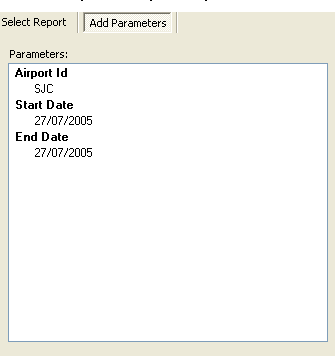
The Add Parameters tab showing the Airport Id, Start Date and End Date parameters for the report
Note: The report runs in the background. Use the Reports Browser to monitor its status — see the article Using the Reports Browser and Report Viewer.