


New article
Recently updated
Publishing reports with Report Topics

Who is this article for?Noise analysts who need to share reports with other ANOMS users.
Access to the ANOMS Noise Analyst Workbench is required.
Reports are private by default — only their author (and users with the same authority) can see them. Publishing a report through a Report Topic makes it available to other users, and is also the prerequisite for putting a report on the Task Bar.
Understanding how publishing works
Administrators, or users with the correct permissions, can publish a report to make it public. To publish a report you first create a Report Topic. The Report Topic binds a Report Task to a report and to a specific user role, so the task always displays the latest version of the report. Before you can create a Report Task on the Task Bar, the report must be published and assigned to a Report Topic.
To publish a report:
- Create the report.
- Create a Report Topic.
- Assign the Report Topic to the report and publish it.
Creating a Report Topic
To create a Report Topic:
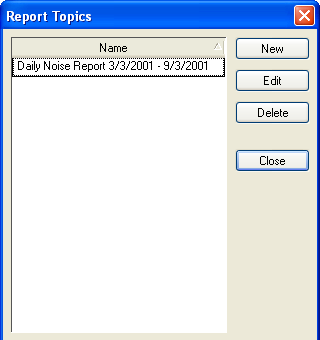
- In the Reports Browser, click the Report Topic button.
- Click New.
- In the Name box, type a Report Topic name.
- In the Description box, type a description.
- Click OK.
Assigning a Report Topic to a report
To assign a Report Topic to a report:
- In the Reports Browser, select the required report.
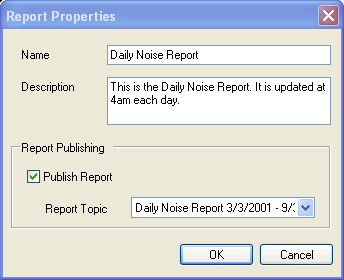
- Right-click and select Properties.
- In the Name box, type a name for the report if you want something different from the default.
- In the Description box, type the report description.
- Under Report Publishing, select Publish Report.
- From the Report Topic list, select the required Report Topic.
- Click OK.
Note: A Report Topic holds one report at a time — if you assign a topic that is already in use, the original report is unpublished.