


New article
Recently updated
Formatting Query Generator report output

Who is this article for?Noise analysts who need to control the columns, sorting and aggregates in query output.
Access to the ANOMS Noise Analyst Workbench is required.
The Report Output area of the Query Generator controls which columns appear in your report, their order, sorting, and whether values are printed as-is or summarised.
Understanding the Report Output area
The Report Output area is available only when the Output Type is set to Report. It is dimmed for Browser queries, because the browser's own columns are the output.
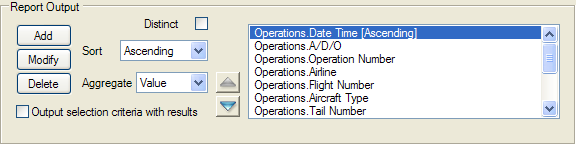
The Report Output area: Distinct, Sort and Aggregate controls, with the ordered list of fields to print
Managing columns and column order
Each field added to the Print box adds a column to the report. Columns appear left to right in the report in the same order the fields appear top to bottom in the Print box. New statements are added below the currently highlighted statement.
To change the column order:
- Select a print statement.
- Use the up and down arrows (the Move Clause buttons) to move it in the Print box.
Moving a field up or down moves its column left or right in the output.
Note: Column headings can differ from the field names — the heading name can be changed using the Format window.
Using the Distinct option
The Distinct option is an easy way to check for the occurrence of a certain value. Whether the value occurs once or many times, it is reported only once.
Term | Definition |
Distinct | Prints only a single line of data where the query finds multiple occurrences of the same data. |
Sorting report values
The Sort option sorts the values in a report column.
To sort values:
- Click the Sort option menu.
- Select one of the following options:
Term | Definition |
No Sorting | Values are not sorted. |
Ascending | Values are sorted in ascending order. |
Descending | Values are sorted in descending order. |
Applying output aggregates
The output aggregate describes how a value is printed in the report, and works like the Aggregate option in the Criteria area.
To apply an aggregate:
- Click the Aggregate option menu.
- Select one of the following options:
Term | Definition |
Value | Prints the values that are stored in the database. |
Count | Prints a count of the number of occurrences. For example, if a query finds departures for a time period, print statements of Runway and Count (Runway) list each runway and the number of departures from it. |
Minimum | Prints the minimum value found by the query — for example, the minimum SEL measured at each noise monitor for a day. |
Maximum | Prints the maximum value found by the query — for example, the maximum SEL measured at each noise monitor for a day. |
Average | Prints the numerical average found by the query — for example, the average SEL at each noise monitor for a day. |
Sum | Prints the sum of the values found by the query. |
For a worked example that combines counts and aggregates, see the article Query Generator example queries.