


New article
Recently updated
Understanding the Query Generator overview

Who is this article for?Noise analysts who want to understand what the Query Generator is and what it can produce.
Access to the ANOMS Noise Analyst Workbench is required.
The Query Generator lets you build your own queries to extract data from the ANOMS database without writing any SQL, sending results to Excel workbooks, pre-formatted Excel report templates, CSV files, or to the ANOMS data browsers and Map Browser.
Understanding what the Query Generator does
The Query Generator allows you to create user queries that extract exactly the data you need. Queries can be saved and recalled when required, and by using interactive values you can update the selection criteria each time a query runs.
There are two types of query, selected with the Output Type option at the top of the window:
- Report queries send their results to Excel — either a plain workbook or a pre-defined Excel report template
- Browser queries send their results to the ANOMS browsers, including the Map Browser, to populate them with the selected data
Navigating the Query Generator window
The window is organised around four questions: where do I want the data (Output Type), where is the data (Datasource selection), how do I get the data (Criteria), and what data do I want to view (Report Output).
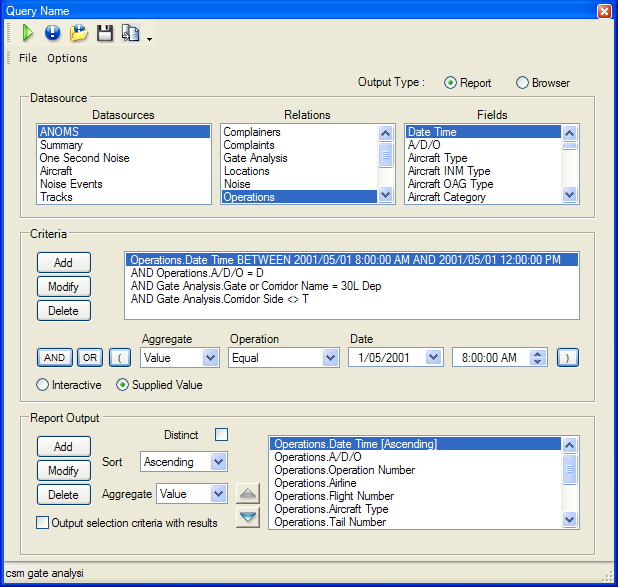
The Query Generator window: Output Type at the top right, with the Datasource, Criteria and Report Output areas below
Using the Datasource selection area
Use the Datasource selection area to choose combinations of Datasource (database), Relation and Field. These combinations are used to build the criteria statements that a report is based on. A query can only use one datasource.
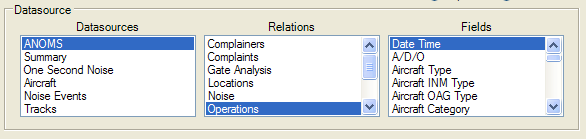
The Datasource selection area: selecting a datasource reveals its Relations, and selecting a Relation reveals its Fields
To select your data source:
- Select a Datasource to reveal the available Relations.
- Select a Relation to reveal the available Fields.
- Note that Fields contain the actual records of data (text and numeric values).
Using the Criteria selection area
The Criteria selection area is where you construct the criteria statements that define a query. These statements are the conditions that data is extracted on — data is extracted only when it meets the conditions set by the criteria statements. The tools in this area include the Aggregate list, the join statement buttons (And, Or and parentheses), the Operation list, the Add, Modify and Delete buttons, and the Interactive and Supplied Value options.
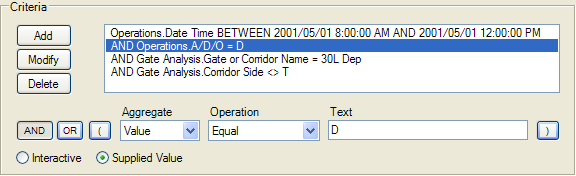
The Criteria selection area, showing completed criteria statements and the Aggregate, Operation and value controls used to build them
Using the Report Output area
Use the Report Output area to choose which fields appear in the output and in what order. Each field added to the Print box adds a column to the report.
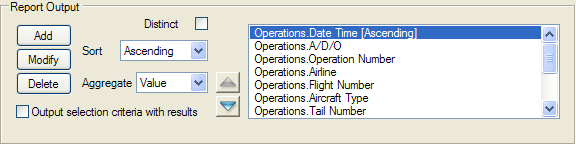
The Report Output area, with the Distinct, Sort and Aggregate controls and the list of fields to print
Note: The Report Output area is available only when the Output Type is set to Report. It is dimmed for Browser queries, because the browser's own columns are the output.
Using toolbar functions
The Query Name toolbar provides the following functions:
Function | Definition |
Execute | Run the current query. |
New | Create a new query. |
Open | Display a list of saved queries. |
Save | Save the query. |
Output options | Select the output type for this query: Excel workbook or report template. |