


New article
Recently updated
Filtering query results in ANOMS Noise Analyst Workbench

Who is this article for?Noise analysts who need to narrow query results by operations, complaints, noise events, aircraft or weather.
Access to the ANOMS Noise Analyst Workbench is required.
You can apply filters to narrow query results across different browsers in the ANOMS Noise Analyst Workbench, including operations, complaints, noise events, aircraft and weather data.
Filtering operations
To filter operations by runway, operation type, airline or aircraft:
- On the Operations Browser toolbar, click New Query.
- In the Load Filtered Data dialogue box, click the Operations tab.
- In the Filter by Runway list, select the runways you want to include.
- Click the right-arrow button to add them.
- Under Operation Type, select the tick box next to each type you want to include, for example Arrival and Departure.
- Optional: to include Plans, select the Include Plans tick box (this returns both operations and plans).
- In the Airline box, double-click Add Airline.
- Select the code of the airline you want to include (to add multiple airlines, double-click Add Airline again).
- In the Aircraft Type box, double-click Add Aircraft Code.
- Select the code of the aircraft you want to include (to add multiple aircraft, double-click Add Aircraft Code again).
- To run the query, click Execute.
Note: You can use the % wildcard in the Aircraft Type and Airline fields. For example, B73% in the Aircraft Type field returns all Boeing 737 models.
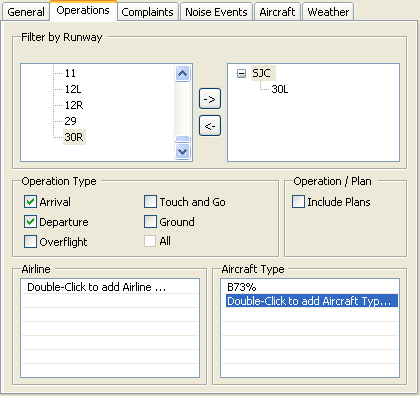
The Operations filter tab: runway selection, operation types, airline and aircraft type filters
Filtering complaints
To filter complaints by caller details or custom query parameters:
- On the Complaints Browser toolbar, click New Query.
- In the Load Filtered Data dialogue box, click the Complaints tab.
- Enter the caller's details in the First Name, Last Name, Street Name or City boxes.
- To refine the query further, select a query parameter from the Add new query parameter list.
- From the operator list, select an operator.
- Type a value for the query parameter in the operand field.
- To add more query parameters, click Add new query parameter again.
- Select another parameter.
- To delete a parameter, click the red X button next to the query parameter value box.
- To run the query, click Execute.
Note: You can use wildcard searching in free-text fields such as First Name and Last Name. Use the * character as a placeholder for any other possible characters in that position.
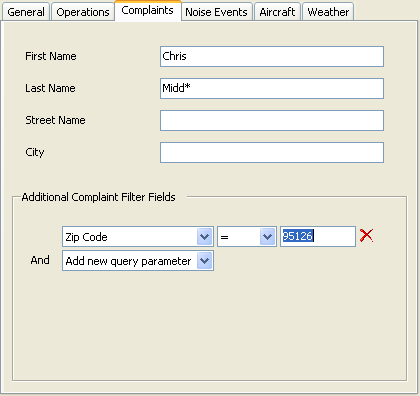
The Complaints filter tab, with a wildcard surname search and an additional Zip Code parameter
Filtering noise events
To filter noise events by noise monitoring terminal location or noise parameters:
- On the Noise Events Browser toolbar, click New Query.
- In the Load Filtered Data dialogue box, click the Noise Events tab.
- To specify which noise monitoring terminals (RMTs) are included, select the required locations in the Filter by NMT Location list.
- Click the right-arrow button to add them.
- To refine the query further, select a query parameter from the Add new query parameter list (for example LMax (dB), Sel (dB) or Event Duration (secs)).
- From the operator list, select an operator.
- Type a value for the query parameter.
- To add more query parameters, click Add new query parameter again.
- Select another parameter.
- To delete a parameter, click the red X button next to the query parameter value box.
- To run the query, click Execute.
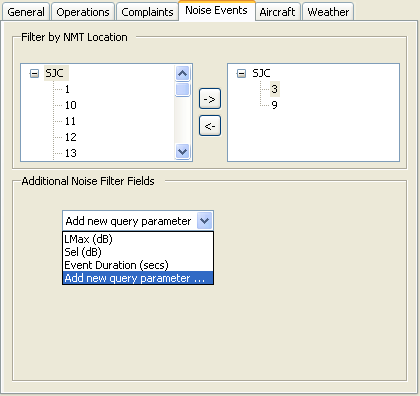
The Noise Events filter tab: NMT location selection and additional noise filter fields
Filtering aircraft
The Aircraft Browser must be open.
To filter aircraft by query parameters or aircraft code:
- On the Aircraft Browser toolbar, click New Query.
- In the Load Filtered Data dialogue box, click the Aircraft tab.
- From the Add new query parameter list, select a query parameter (for example Tail Number, Owner Name or Airframe Manufacturer Name).
- From the operator list, select an operator.
- Type a value for the query parameter.
- To add more query parameters, click Add new query parameter again.
- Select another parameter.
- To delete a parameter, click the red X button next to the query parameter value box.
- In the Aircraft Code box, click Add Aircraft Code.
- Select the code of the aircraft you want to include (to add multiple aircraft, click Add Aircraft Code again).
- To run the query, click Execute.
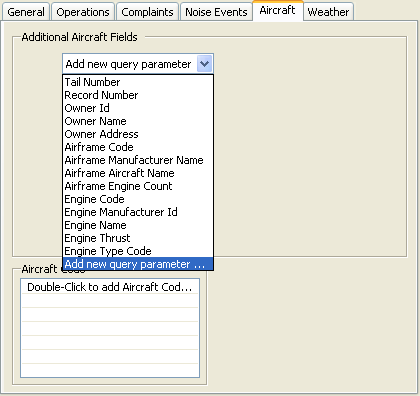
The Aircraft filter tab, showing the available aircraft query parameters
Filtering weather data
Use the Weather Station Id to search for weather data.
To filter weather data by query parameters:
- On the Weather Browser toolbar, click New Query.
- In the Load Filtered Data dialogue box, click the Weather tab.
- From the Add new query parameter list, select a query parameter (for example Weather Station Id, Temperature or Wind Speed).
- From the operator list, select an operator.
- Type a value for the query parameter.
- To add more query parameters, click Add new query parameter again.
- Select another parameter.
- To delete a parameter, click the red X button next to the query parameter value box.
- To run the query, click Execute.
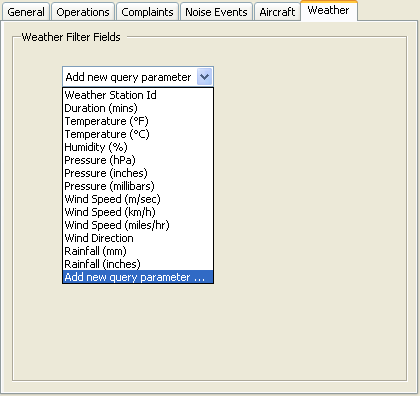
The Weather filter tab, showing the available weather query parameters