


New article
Recently updated
Creating a query with Load Filtered Data

Who is this article for?Noise analysts who need to load data into ANOMS browsers using queries.
Access to the ANOMS Noise Analyst Workbench is required.
All ANOMS browsers must be populated with data by running a query, and Load Filtered Data is the standard way to build one.
Understanding parent and child browsers
Browsers can exist independently or be linked together in a parent/child relationship. The query parameters on the parent browser control the data displayed in the child browsers: the browser where you run the query is the parent, and the other open browsers are the children.
Choosing how to populate browsers
You can create new queries or use existing saved queries. There are two methods of populating the browsers with data:
- Using the Load Filtered Data function (described here)
- Using the Query Generator to create complex queries (see the Query Generator documentation)
Understanding available filters
Setting a filter option extracts only data matching that selection. The following filters are available:
- Time Period
- Operations
- Complaints
- Noise Events
- Hourly Climates
- Violations
- ATC Data
- Aircraft
- System Events
- Weather
You must always enter the Time Period setting — it is required to extract data. All other filters are optional and can be used to focus the extraction on specific data (for example, aircraft type = B727, or noise event Lmax > 85).
Note: A browser must be open in order to specify filter criteria for that data type. For example, the Noise Events Browser must be open before you can set Noise Event filter criteria.
Note: If a filter value is left in its default (blank) state, that filter is not applied.
Creating a new query
You can run the Load Filtered Data query from any of the browsers.
To create a new query:
- Open the required browser(s).
- On the browser toolbar, click New Query.
- Click More to view a Query Summary of your current settings.
- Enter the Time Period filter (see "Time period options in queries").
- Enter the Output options (see below).
- Optional: enter Operations, Complaints, Noise Event, Aircraft or Weather filters (see "Filtering queries in ANOMS browsers").
- Optional: save the query (see "Saving and running queries").
- Click Execute to run the query.
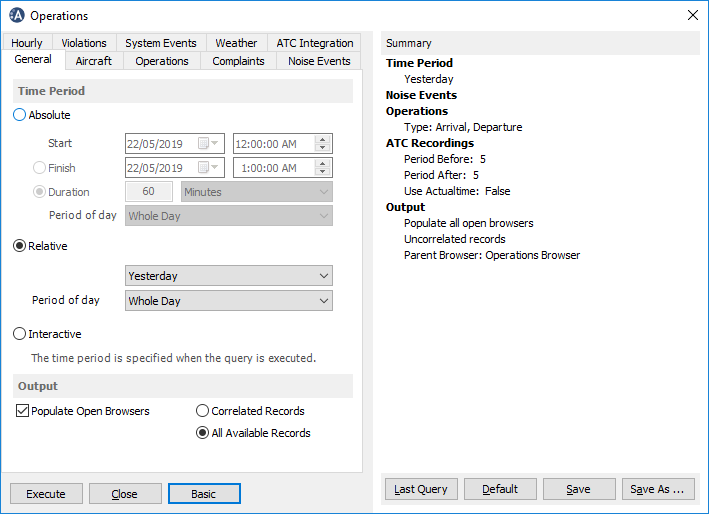
The Load Filtered Data window, with the Query Summary shown on the right
Configuring output options
Use the Output options to determine what data the query retrieves:
- To populate every open browser from the single query, select Populate Open Browsers
- Select either Correlated Records or All Available Records (see "Correlated vs uncorrelated records explained")
Setting time period options
Every Load Filtered Data query needs a time period — it is the one mandatory filter. ANOMS offers three ways to define it: Absolute, Relative and Interactive, and each can be combined with a Period of Day.
To set the time period:
- On the General tab of the Load Filtered Data dialogue box, select one of the three time period options.
- Select the Period of day if you want to restrict the query to part of each day (see "Creating and using a Period of Day").
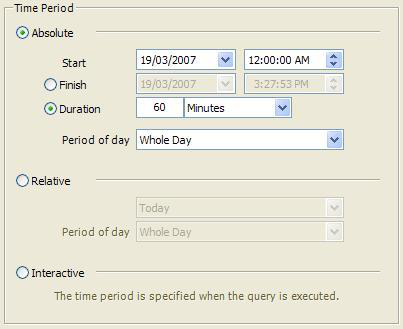
The Absolute, Relative and Interactive time period options in the Load Filtered Data dialogue