


New article
Recently updated
Adding and managing annotations on the map

Who is this article for?Noise analysts who need to add text labels to the map.
Access to the ANOMS Noise Analyst Workbench is required.
Annotations allow you to add custom text labels to your map for reference and documentation purposes.
Adding a new annotation
To add an annotation to your map:
- On the Map toolbar, click Annotations, or on the Map menu click Annotations Editor.
- Click New.
- In the annotation text box, type the required text.
- Click Position.
- Click on the map to position the text.
- Configure the annotation appearance as needed:
- In the Horizontal Alignment list, select an alignment
- In the Vertical Alignment list, select an alignment
- In the Rotation Angle box, select or type a rotation angle
- In the Size box, select or type a font size
- In the Font list, select a font
- Click Save.
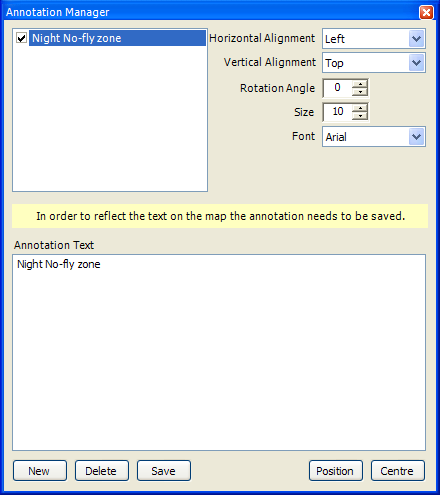
The Annotation Manager dialogue box, with alignment, rotation, size, and font controls
Note: The annotation must be saved before the text is reflected on the map.
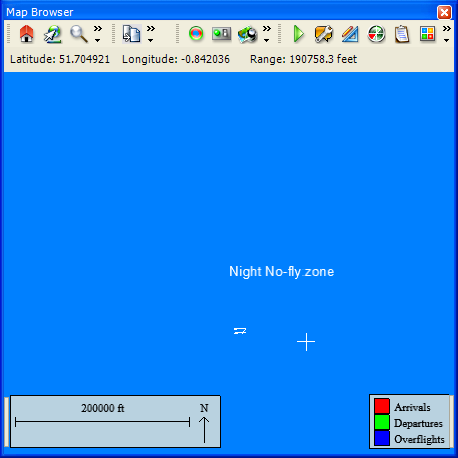
An annotation displayed on the map
Centring the map on an annotation
To centre the map view on a specific annotation:
- In the Annotation Manager, select the annotation.
- Click Centre.
Editing an annotation
To edit an existing annotation:
- On the Map toolbar, click Annotations.
- Select the annotation to edit or move.
- Make your changes:
- In the Horizontal Alignment list, select an alignment
- In the Vertical Alignment list, select an alignment
- In the Rotation Angle box, select or type a rotation angle
- In the Size box, select or type a font size
- In the Font list, click a font
- In the annotation text box, type the text.
- To reposition the text, click Position.
- Click on the map to set the new position.
- Click Save.
Deleting an annotation
To delete an annotation from your map:
- On the Map toolbar, click Annotations.
- Select the required annotation.
- Click Delete.
Saving and loading map views
Use the Map View List to store map views for later use, allowing you to return to a favourite position and scale quickly.
The parameters of the view, including the centre point and scale, are saved.
Note: Layers and data are not saved with a Map View. To control which layers display, use the Feature Manager (see "Showing and hiding map layers with the Feature Manager").