


New article
Recently updated
Customising map colours in ANOMS

Who is this article for?Noise analysts who want to customise map object and flight track colours.
Access to the ANOMS Noise Analyst Workbench is required.
You can customise the colours of map objects and flight tracks in ANOMS to distinguish between different aircraft operations and improve visual clarity.
Setting object colours
Use the General tab to define the colours of map objects such as gates, corridors, NMTs, and screen text.
To set object colours:
- On the Map toolbar, click Map Colours.
- Click the General tab.
- In the Color Scheme section, click User.
- Next to the feature you want to change, click the colour box.
- From the colour palette, select a new colour.
- Click OK.
- Click Apply.
- Click OK.
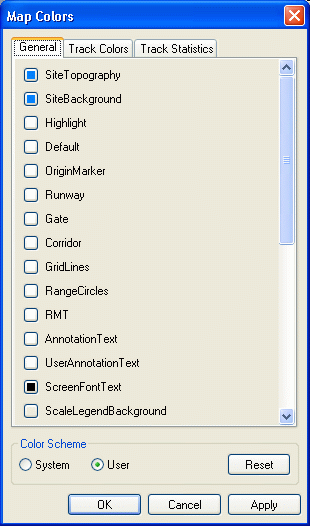
The Map Colours dialogue box on the General tab, with the User colour scheme selected
Note: You cannot modify the System colour scheme.
Setting track colours
The Track Colors tab lets you distinguish between aircraft operations on the Map Browser by setting colours for each mode, such as Aircraft Category, Airport, and Altitude. When you select the Airline mode, you can also rank the top airlines at the airport.
To set track colours:
- On the Map toolbar, click Map Colours.
- Click the Track Colors tab.
- In the Color Scheme section, click User.
- In the Mode list, click the required mode.
- Next to the feature you want to change, click the colour box.
- From the colour palette, select a new colour.
- Click OK.
- Click Apply.
- Click OK.
Note: This function determines the legend's display colours. Use the Feature Manager (Tracks tab) to control the legend display on the Map Browser — the Mode list corresponds to the options on that tab.
Changing the order of the top airlines
You can change the colours and ranking of the airlines shown in the Airline mode.
To change the airline order:
- In the Map Colours dialogue box, click the Track Colors tab.
- In the Mode list, click Airline.
- In the list of airlines, click the browse button next to the airline you want to change.
- Select the new airline.
- Click OK.
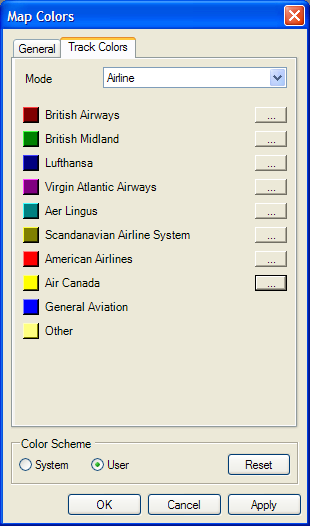
The Track Colors tab in Airline mode, with a browse button next to each ranked airline
Using custom colours
You can customise the colour selection for any ANOMS item where the colour can be changed. This is done via the standard colour palette, where you choose from set (standard) colours.