


New article
Recently updated
Using Transform View to set an exact map position

Who is this article for?Noise analysts who need to set an exact map position.
Access to the ANOMS Noise Analyst Workbench is required.
The Transform View window provides precise control of the map through pan, zoom, and rotate functions, and allows you to enter exact values for scale, latitude, longitude, elevation, and heading.
Opening the Transform Map View window
To open the Transform Map View window:
- On the Map menu, click Transform View.
Alternatively, click the Transform Map button on the Map toolbar.
The Transform Map View window appears.
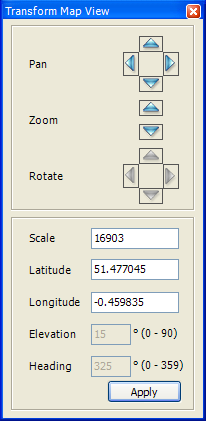
The Transform Map View window, with pan, zoom, and rotate controls and boxes for exact values
Note: The Rotate controls and the Elevation and Heading boxes are unavailable in 2D mode.
Entering a new centre point
Map views are centred on a specific latitude and longitude.
To relocate the map view:
- In the Transform Map View window, type a new value in the Latitude box.
- Type a new value in the Longitude box.
- Click Apply.