


New article
Recently updated
Navigating the ANOMS workspace

Who is this article for?Noise analysts who are new to the ANOMS workspace and its terminology.
Access to the ANOMS Noise Analyst Workbench is required.
The Noise Analyst Workbench window comprises standard areas with windows that can be moved, docked, and controlled with the mouse.
Understanding the window layout
The ANOMS application window contains the following areas:
- Title bar — shows the application name and your site
- Menu bar — each menu lists commands that are logically grouped
- Main toolbar — buttons for common tasks (see "ANOMS main toolbar reference")
- Workspace — the main area where browsers and windows open
- Status/message bar — shows system messages along the bottom of the window
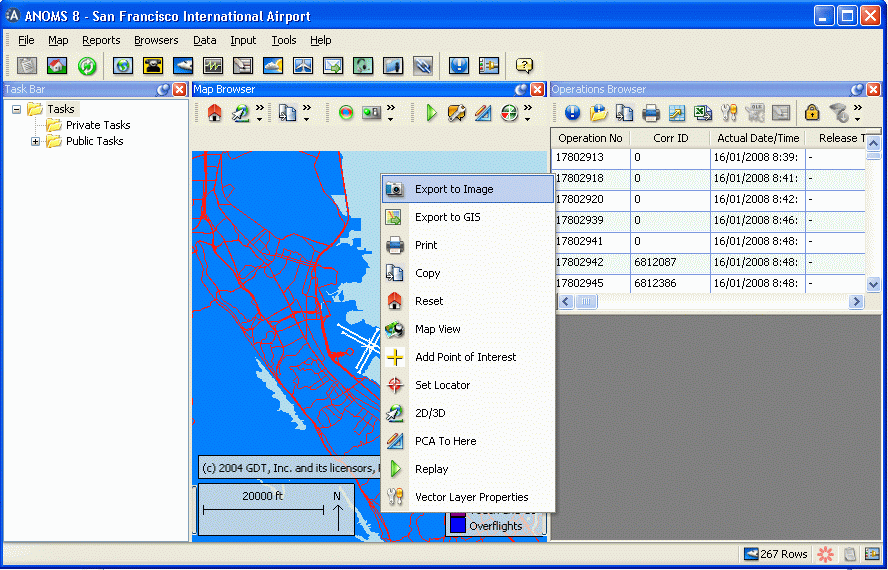
The ANOMS workspace, showing the Task Bar, Map Browser, Operations Browser, and the right-click context menu
Understanding key terminology
Term | Definition |
Workspace | The area within the ANOMS application window. You can extend the workspace across monitors when extended monitor support is enabled. |
Docking | A window can float anywhere on the screen. Docking lets you fix the window in position on the workspace. Hold the Ctrl key down while dragging a window to position it anywhere in the workspace. |
Menu bar | Each menu lists commands that are logically grouped. |
Toolbars | Contain buttons and commands for common tasks. |
Right-click option | The right-click menu is context sensitive; the options available depend on the window with focus. Unavailable options are dimmed — for example, if the browser is already open. |
Using menus and the toolbar
The options on the main menu duplicate the toolbar functions, so you can work whichever way suits you. You can also reach many of the same commands through the right-click context menus.