


New article
Recently updated
Creating a selection zone

Who is this article for?Noise analysts who need to define a polygon zone for automatic flight flagging.
Access to the ANOMS Noise Analyst Workbench is required.
Selection zones are polygons drawn on the map with defined floor, ceiling, colour, and transparency properties that become visible to all users once created.
Creating a selection zone
To create a selection zone:
- On the Map Browser toolbar, click the Feature Manager button, or on the Map menu, click Feature Manager.
- Select the Zones tab.
- Select a folder to create the zone in (the default folder is automatically selected).
- To create a new folder, click the New Folder button at the bottom of the panel.
- Rename the folder by right-clicking and selecting Rename, or click once on the highlighted folder and enter the new name.
- Press Enter to finish renaming.
- Click the New Zone button.
- Enter the zone name by right-clicking and selecting Rename, or click once on the highlighted zone and enter the new name.
- Press Enter to finish renaming.
- Click the Add/Move button.
- Ensure the map is in 2D mode.
- Create a polygon by repeatedly clicking on the map (the line joining two points appears after the second click, and a dotted line connects the last and first points).
- Ensure the polygon has more than two points and no intersecting segments.
- Click and drag existing points to adjust the polygon if needed.
- Click the Add/Move button again to finish adding points.
- Enter the Minimum and Maximum height of the zone in feet.
- Choose the transparency by moving the slider or entering the percentage in the field.
- Select the colour by clicking the Colour box, then choose a set colour or create your own.
- Click Save to commit the changes to the database.
Note: You can zoom in, zoom out, and pan the map while adding points.
Important: You will not be able to save the polygon if it has fewer than three points or contains intersecting segments. ANOMS checks for inconsistencies before allowing the save to proceed.
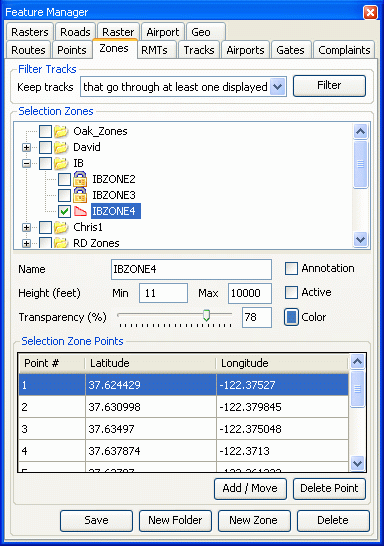
The Feature Manager Zones tab, showing zone folders, zone properties, and the Selection Zone Points list