


New article
Recently updated
Editing corridor dimensions and filtering

Who is this article for?Noise analysts who need to adjust corridor gates, widths or altitude limits.
Access to the ANOMS Noise Analyst Workbench is required.
Editing a corridor is similar to editing a gate for the name, active status, and filter settings, but differs in the dimensions and position settings: each gate in the corridor is edited separately on its own tab.
Modifying corridor filtering
Note: When a corridor is created, the floor and ceiling of each gate in the corridor default to zero and 20,000 feet respectively.
To modify corridor filtering:
- In the Corridors list, select the required corridor.
- Click Properties.
- Select the corridor Active check box.
- (Optional) Under A/D Type Filtering, select the Active check box and choose the operation types.
- (Optional) Under Runway Filtering, select the Active check box and choose the runways.
Note: For more detail on setting filters, see the article Editing gate properties — the filter settings work the same way for corridors.
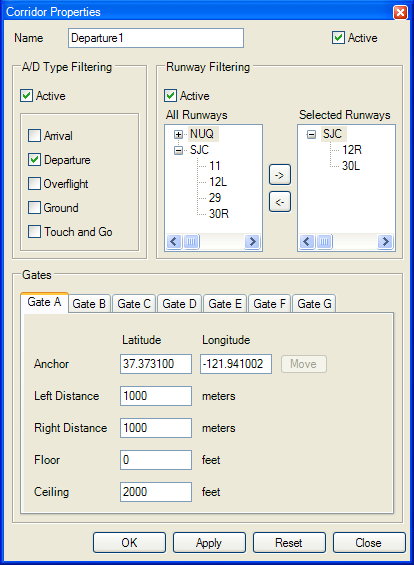
The Corridor Properties window, with one tab for each gate that makes up the corridor
Understanding corridor dimensions
When editing a corridor, each gate that is part of the corridor is edited separately, controlled in separate tabs. Corridors are graphically edited by moving the anchor point of the individual gates within the corridor. You can also type values for the Left Distance, Right Distance, Floor, and Ceiling dimensions. Follow the same editing steps for any of the gates in the corridor.
When changing the dimensions of the corridor gates, make the first and last gates large enough to capture the tracks.
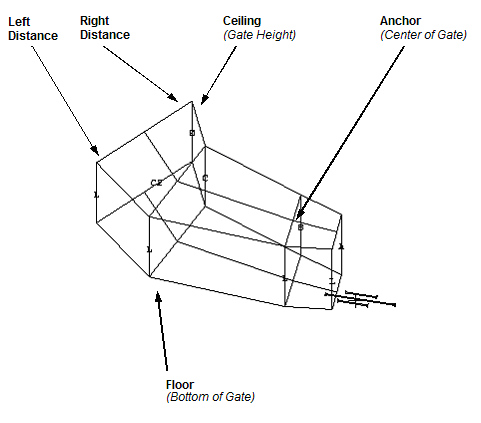
A corridor gate's dimensions: the anchor is the centre of the gate, with left and right distances, a floor, and a ceiling
Moving a corridor gate's anchor point
To move a corridor gate's anchor point:
- Under Gates, click the tab for the required gate.
- On the Map Browser, move the cursor to the new anchor point.
- Click the new anchor point location.
- In Corridor Properties, click Move next to the Anchor Longitude box.
- Click Apply to see the effect.
Note: The latitude and longitude for the anchor is now the same as displayed in the message area of the Map Browser.
Changing a corridor gate's dimensions
To change a corridor gate's dimensions:
- Under Gates, click the tab for the required gate.
- In the Left Distance box, type a value.
- In the Right Distance box, type a value.
- In the Floor box, type a value.
- In the Ceiling box, type a value.
- Click Apply to see the effect.
Storing the new corridor properties
To store the new corridor properties:
- Click OK.
Note: Although the changes are stored, they are not yet saved to the database. See the article Saving and deleting gates and corridors.