


New article
Recently updated
Organising gates and corridors into groups

Who is this article for?Noise analysts who manage a large number of gates and corridors.
Access to the ANOMS Noise Analyst Workbench is required.
ANOMS lets you organise gates and corridors into named groups, so you can quickly display a related set together.
Creating a group
To create a group:
- In the Gates and Corridors window, select the Gates or Corridors tab.
- Click New Group.
- Type the group name in the new group folder that appears.
- Press Enter.
- Select the required gate or corridor and drag it into the group folder.
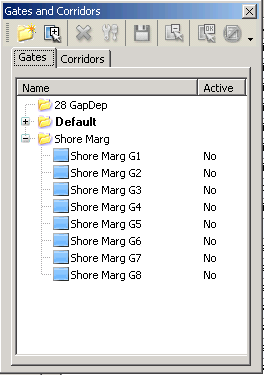
The Gates and Corridors window with gates organised into group folders
Deleting a group
Important: Deleting a group also deletes the gates or corridors it contains.
To delete a group:
- In the Gates and Corridors window, select the Gates or Corridors tab.
- Select the required group folder.
- Click Delete or right-click and select Delete.
- Click Yes to confirm deletion of the group and its contents.
Renaming a group
To rename a group:
- In the Gates and Corridors window, select the Gates or Corridors tab.
- Select the required group folder.
- Right-click and select Rename.
- Type a new name.
- Press Enter.
Displaying groups on the map
Selecting a gate or corridor in the Gates and Corridors window displays it on the Map Browser. To display whole groups, use the Feature Manager.
To display groups on the map:
- From the Map Browser window, open the Feature Manager.
- Click Gates.
- Double-click the plus or minus symbol to expand or collapse a group folder.
- Use the check boxes to turn the display of each gate or corridor on or off.
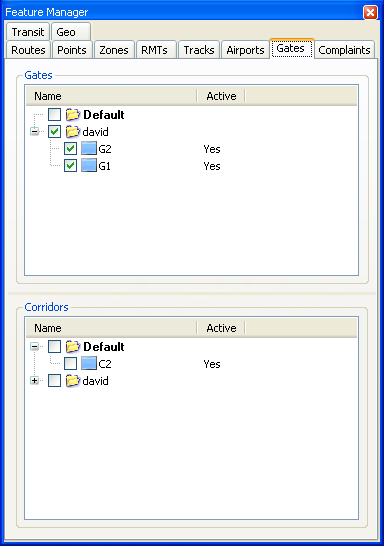
The Feature Manager Gates tab, used to display gate and corridor groups on the map