


New article
Recently updated
Saving and deleting gates and corridors

Who is this article for?Noise analysts who maintain their airport's gates and corridors.
Access to the ANOMS Noise Analyst Workbench is required.
Changes to gates and corridors are stored locally on your client until you save them to the database.
Understanding the save process
Important: All Gate Analysis data will be lost when you save an existing gate with new settings, because the data in the database pertains to the previous gate settings and is no longer valid. To keep the previous gate settings, click Reset in the editor instead.
The Save action button saves all gates and corridors that have been edited.
Saving a gate or corridor
To save your changes:
- In the Gates and Corridors window, click Save.
- Review the message describing the changes that will be saved to the database.
- Click Yes.
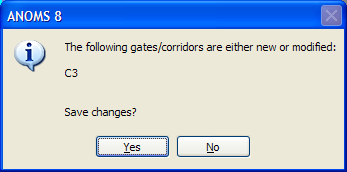
The save confirmation message listing the gates and corridors that are new or modified
Deleting a gate or corridor
Gates and corridors can be deleted by selecting them one at a time from the list in the Gates and Corridors window.
Important: Think carefully before deleting — all analysis data associated with the gate or corridor is also deleted.
To delete a gate or corridor:
- On the Input menu, click Gate/Corridor Editor.
- Select the Gates or Corridors tab, depending on which you want to delete.
- From the list, select the gate or corridor to delete.
- Click Delete.
- In the delete warning dialogue box, click Yes to delete, or No to cancel.
- If analysis data exists for the selected gate or corridor, respond to the additional dialogue box that appears.