


New article
Recently updated
Creating a track-keeping gate

Who is this article for?Noise analysts who need to define gates for track-keeping analysis.
Access to the ANOMS Noise Analyst Workbench is required.
You create gates in the Gates and Corridors window, positioning each gate's endpoints directly on the Map Browser.
Opening the Gate/Corridor Editor
To open the Gate/Corridor Editor:
- On the Input menu, click Gate/Corridor Editor.
The Gates and Corridors window appears. This is the main window for viewing existing gates and corridors, and for launching commands to create, edit, save, and delete them. It has a toolbar and tabs to switch between the list of gates and the list of corridors. When you select a gate or corridor in the list, it displays on the Map Browser, where you can view it in 2D or 3D.
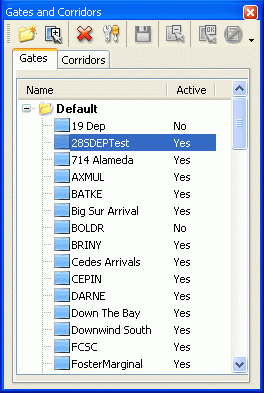
The Gates and Corridors window, showing the Gates tab and the active status of each gate
Tip: When creating gates and corridors, first load a set of tracks to get an idea of the route. Use the 2D map setting when positioning gates on the map, and use the 3D map with zero elevation to view the floor and ceiling. For gates, you define the left and right boundaries, so two points make a gate. For corridor gates, the cross-hairs mark the centre of the gate, so only one point is required.
Creating a new gate
Note: Have the Map Browser open before you start — a cursor displays on the map.
To create a new gate:
- On the Input menu, click Gate/Corridor Editor.
- Click the Gates tab.
- Click Create.
- On the Map Browser, position the cursor where you want the left (or right) endpoint of the gate, then click to define it.
- Move the mouse cursor to the desired position of the other endpoint, and click to define it.
- When you have finished entering gates, click End Create.
- Click Properties to modify the gate's details.
- Click Save.
The mouse cursor changes to a square for entry of gate points. A temporary name (G#) for the new gate is displayed in the gate list of the Gates and Corridors window.
Note: You need two points to form a gate. If you make a mistake positioning the gate, use Delete Point to remove the last point entered.
Note: The gate's parameters can be refined once the gate has been created — see the article Editing gate properties.